Multi-currency expenses
Learn how to handle foreign transactions with automatic currency conversion and manage international travel expenses.
What are multi-currency expenses?
Multi-currency expenses are costs incurred in a foreign currency that need to be converted to your company's base currency for reimbursement. When you travel internationally or purchase from foreign vendors, Eloope automatically handles the currency conversion mathematics while preserving both the original foreign currency amount and the converted amount for complete transparency and audit purposes.
Common scenarios requiring multi-currency handling. International business travel generates the majority of multi-currency expenses, including hotels, meals, ground transportation, and incidentals all paid in local currency. Foreign vendor payments for software subscriptions, professional services, or supplies purchased from international companies often arrive as invoices in foreign currencies. Online purchases from international websites automatically process in the seller's local currency. Conference registrations for events held in other countries typically require payment in the host country's currency.

Create a multi-currency expense
Creating an expense in foreign currency is nearly identical to creating a domestic expense, with one additional step to specify the currency.
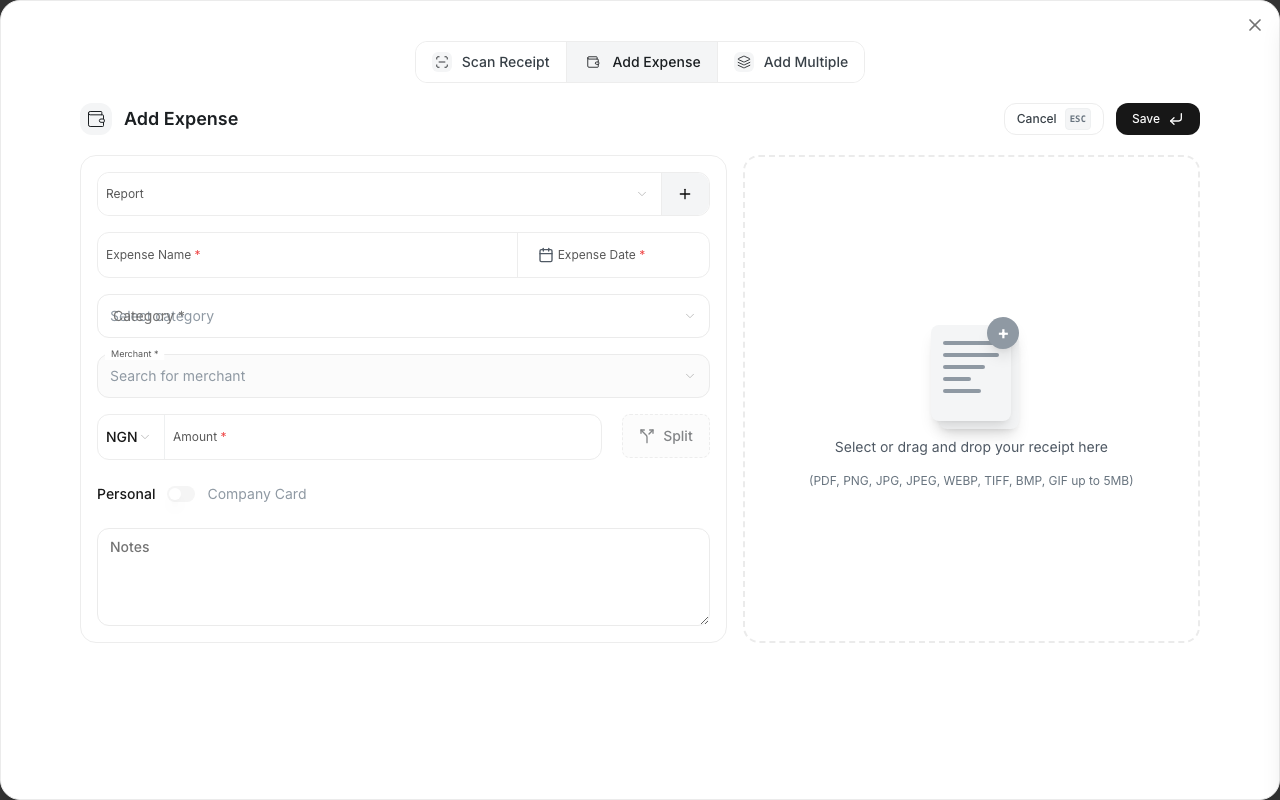
Click "+ New Expense" to open the expense creation form. Fill in the merchant name as usual. Before entering the amount, click the Currency dropdown which defaults to your home currency—typically USD. Choose the appropriate foreign currency from the list of supported currencies, such as EUR for Euros, GBP for British Pounds, JPY for Japanese Yen, or any of the 150+ currencies Eloope supports. Enter the expense amount in the selected foreign currency exactly as it appears on your receipt—for example, enter 50.00 if your receipt shows 50 Euros. The system automatically and immediately converts the amount to your home currency using the exchange rate from the transaction date. Both amounts display simultaneously showing the foreign currency and converted amount, for example: "50.00 EUR ($54.25 USD)." Complete the remaining fields including expense date, category, payment method, and description. Upload your receipt showing the foreign currency amount. Click "Save" to create the expense.
The entire conversion happens transparently in the background, requiring no manual calculation on your part.
Automatic currency conversion
Understanding how Eloope's currency conversion works helps you verify that conversions are accurate and reasonable.
How automatic conversion works. As soon as you enter an amount in foreign currency, the system immediately fetches the appropriate exchange rate for your specified transaction date. It converts the foreign amount to your company's base currency automatically using that historical rate. Both the original foreign amount and the converted amount display clearly, ensuring full transparency. The conversion updates automatically if you change the transaction date, since exchange rates fluctuate daily.
Exchange rate source and accuracy. Eloope uses reliable exchange rate APIs that aggregate data from major financial institutions, providing rates updated daily for current transactions. The system maintains historical exchange rates for past dates, ensuring accurate conversion of expenses from weeks or months ago. The rates typically match or come very close to major bank exchange rates, though they don't include the markup that credit card companies or banks may add for foreign transactions.

Practical example demonstrating the process. Suppose you had a business lunch in Paris on March 15, 2024, and your receipt shows 100.00 EUR. When you create the expense and select March 15 as the date, Eloope fetches the exchange rate that was in effect on March 15, 2024—let's say 1.0850 USD per Euro. The system automatically multiplies 100.00 EUR by 1.0850 to get $108.50 USD. Your expense displays as "100.00 EUR ($108.50 USD)" throughout the system.
Manual exchange rate override
While automatic conversion works perfectly for most situations, sometimes you need to override the rate to match your actual credit card charges.
When and why to use manual override. Credit card companies and banks often add foreign transaction fees, typically 1-3%, to their exchange rates. If your credit card statement shows a significantly different amount than Eloope's automatic conversion, you should override to match what you actually paid. Some organizations have policies requiring that you claim reimbursement for the exact amount charged to your card rather than the theoretical mid-market rate. When the difference between the system rate and your card rate exceeds a few percent, using the actual rate ensures accurate reimbursement.
How to override the exchange rate. Create your multi-currency expense as usual, and the system displays its automatically converted amount. Look for and click the "Custom Rate" or "Override Rate" link or button near the currency fields. Enter the actual exchange rate from your credit card statement—you can calculate this by dividing the amount your card charged in your home currency by the foreign currency amount. The system immediately recalculates the conversion using your custom rate. A note or indicator appears showing that a custom rate was used rather than the system's default rate.
Practical override example. Your Paris lunch receipt showed 100.00 EUR. Eloope's system rate was 1.0850, suggesting a conversion of $108.50. However, your credit card statement shows you were charged $109.20 for that transaction because your bank added a 0.7% foreign transaction fee and used a slightly different rate. The effective rate your bank used was 1.0920 ($109.20 ÷ 100.00 EUR). You click "Custom Rate" and enter 1.0920 as the exchange rate. Eloope recalculates and now shows the converted amount as $109.20, matching your credit card statement exactly.
View both currencies
Throughout the Eloope system, multi-currency expenses always display both the original foreign currency and the converted amount for complete clarity.
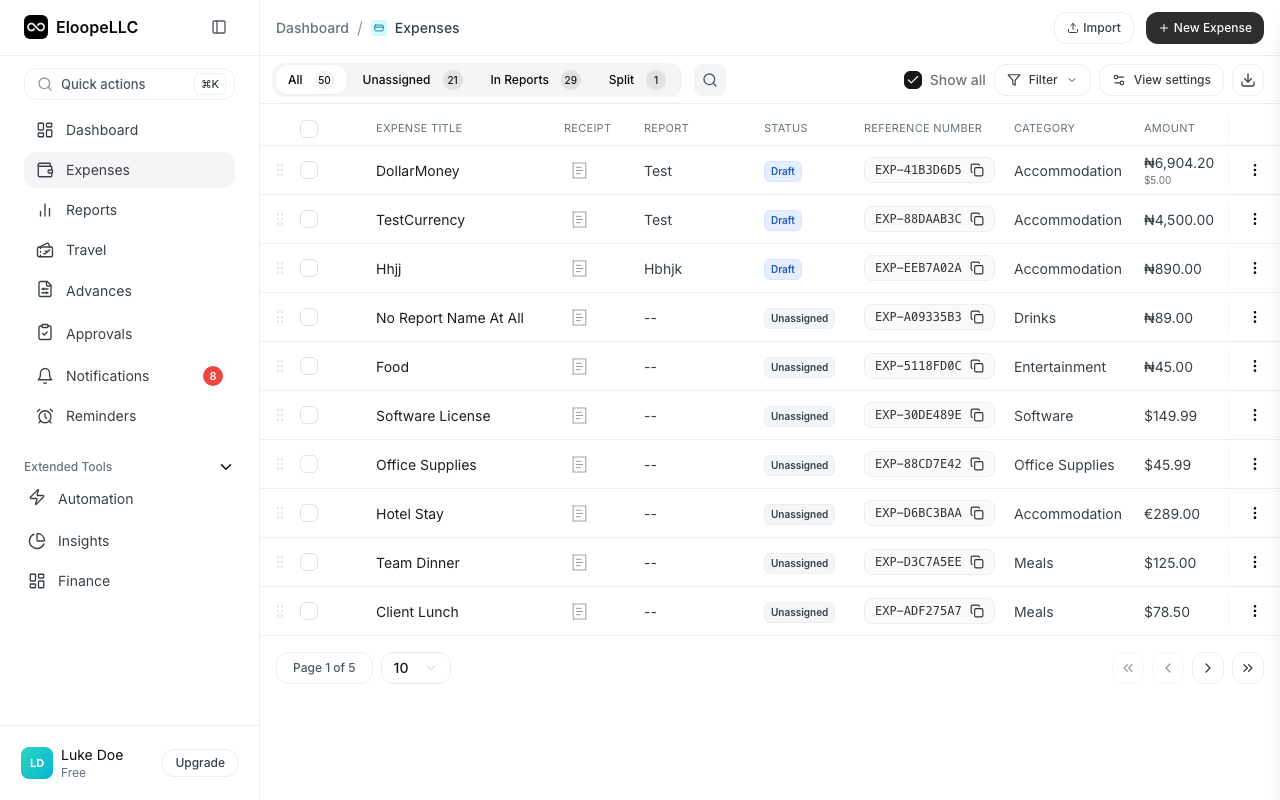
In the expense list view. Each multi-currency expense shows merchant name, date, and the amount displayed as "€75.00 ($81.38)" where the foreign currency appears first followed by the converted amount in parentheses. This format makes it immediately clear which expenses were foreign transactions and allows you to verify amounts match your receipts.

In report views. When you add multi-currency expenses to a report, each line item shows both currencies. The report total sums all expenses after converting them to the base currency, so a report might show individual items in EUR, GBP, and USD, with a total reported in USD. For example, "Report Total: €247.50 → $268.64" or simply "$268.64 (includes 3 foreign currency expenses)."
On expense detail pages and receipts. The uploaded receipt image displays the original foreign currency amount. The expense details panel shows comprehensive information including the original amount in foreign currency, the exchange rate used (either automatic or custom), and the converted amount in base currency. This complete transparency ensures approvers can verify that the conversion was reasonable and that amounts match the receipt.
Foreign currency receipts
Proper handling of foreign currency receipts ensures smooth approval and accurate record-keeping.
Best practices for foreign currency receipts. Upload the receipt image showing the amount in foreign currency exactly as it appears, without attempting to convert or annotate it. Verify that the amount on the receipt matches the foreign currency amount you entered in Eloope before saving the expense. The approval system will compare the receipt to your entered foreign amount, not to the converted amount, so accuracy in the foreign currency is what matters most.
OCR with foreign currency receipts. Eloope's OCR technology can process receipts in foreign currencies and often detects currency symbols like €, £, ¥, or $ in context. After OCR processing, verify that the currency selection dropdown shows the correct currency—OCR may occasionally misidentify the currency or default to USD. Double-check that the extracted amount is accurate, as foreign receipt formats vary significantly by country. Once verified, save the expense with confidence that both the amount and currency are correct.
Multiple currencies in one report
Business trips often span multiple countries, resulting in expense reports containing various currencies all converted to a single base currency for the total.
Example of a multi-country trip report. Imagine a European business trip report containing a lunch in London costing £45.00 converted to $57.15, a taxi in Paris costing €28.00 converted to $30.38, a hotel in Berlin costing €180.00 converted to $195.30, and a return flight paid in USD for $450.00. The system converts each foreign currency expense to USD individually, then sums them all together. Your expense report total would show $732.83, representing the sum of all expenses converted to the base currency.
This approach simplifies reporting and approval since approvers and finance teams work with a single currency total, while the detail view preserves the original foreign currency amounts for verification and audit purposes.

Reimbursement
Understanding how reimbursement works for multi-currency expenses eliminates confusion about which amount you'll receive.
You always receive reimbursement in your home currency. No matter what currency you spent in, your reimbursement payment will be in your company's base currency. For an expense of €100.00 that converted to $108.50, you'll receive $108.50 in USD deposited to your bank account. The foreign currency amount serves purely as documentation and verification.
Exchange rate timing and stability. Eloope uses the exchange rate that was in effect on your expense date, not the submission date or approval date. This rate is locked as soon as you create the expense and doesn't change even if actual exchange rates fluctuate significantly between your transaction and your reimbursement. This policy provides predictability and fairness, ensuring you're reimbursed based on the rate when you actually spent the money, not when the paperwork was processed.
Credit card reconciliation
When using personal credit cards for foreign currency expenses, reconciling Eloope amounts with card statement amounts requires understanding both rates.
Managing the difference between Eloope and your card. Your credit card will convert foreign currency charges using their own exchange rate, which includes any foreign transaction fees they charge—typically 1-3% markup over the mid-market rate. Eloope's automatic rate may differ slightly from what your card company actually charged you, creating a small variance. If the difference is minor—generally less than 2%—many organizations and employees accept this variance as the cost of using personal cards for business expenses. If the variance is significant—more than a few dollars on a large expense—consider using the manual override feature to match your card's actual conversion exactly.
Reconciliation example with variance. Your expense receipt showed €100.00. Eloope's conversion using the mid-market rate calculated $108.50. Your credit card statement shows you were actually charged $109.20 for that same transaction due to the foreign transaction fee. The variance is $0.70, or about 0.6%. For such a minor difference, most people accept the $0.70 loss as insignificant. However, if you're reimbursing thousands of dollars in foreign expenses, those small variances add up, and you might prefer to use manual override to claim the exact $109.20 your card was charged.
Supported currencies
Eloope's extensive currency support covers virtually every country where you might conduct business.
The platform supports over 150 currencies including all major currencies such as USD (US Dollar), EUR (Euro), GBP (British Pound), CAD (Canadian Dollar), AUD (Australian Dollar), JPY (Japanese Yen), CNY (Chinese Yuan), INR (Indian Rupee), KRW (South Korean Won), CHF (Swiss Franc), SEK (Swedish Krona), NOK (Norwegian Krone), DKK (Danish Krone), and many others covering Africa, Asia, Europe, the Americas, and Oceania.
To see which currencies your organization has enabled, check your organization's currency settings by navigating to Settings → Currencies. If you need a currency that isn't available, contact your administrator to add it—administrators can enable additional currencies at any time.
Best practices
Following these guidelines ensures smooth handling of international expenses without conversion errors or reconciliation issues.
Always select the correct currency before entering the amount—changing currency after entering an amount can cause confusion. Verify that the automatic exchange rate looks reasonable by doing a quick mental check—for example, you should know roughly that 1 EUR ≈ $1.10 USD. Upload receipts showing the foreign currency amount clearly, ensuring the entire receipt is legible and the currency symbol is visible. Use manual exchange rate override if your credit card's rate differs significantly from the automatic rate, especially for large expenses. Submit foreign currency expenses promptly while exchange rates are still relatively stable—waiting weeks or months increases the chance of significant rate changes. Keep your credit card statements accessible for reconciliation purposes, especially for trips with numerous foreign currency transactions.
Troubleshooting
Common issues with multi-currency expenses have straightforward solutions.
Exchange rate seems incorrect or unreasonable. First, verify you selected the correct transaction date, since exchange rates change daily and using the wrong date can significantly impact the conversion. Check whether the rate that seems "wrong" actually includes foreign transaction fees—your credit card's rate will be worse than the mid-market rate Eloope uses. If necessary, use the manual override feature to specify the exact rate you need.
Currency you need isn't available in the dropdown. Contact your organization's Eloope administrator and request that they add the currency to the system. Administrators can enable additional currencies instantly through Settings → Currencies → Enable Additional Currencies.
OCR detected the wrong currency or amount. After OCR processing completes, manually change the currency in the dropdown to the correct one. Verify that the amount matches your receipt exactly, correcting any OCR errors. Save the expense with the corrected information—the OCR technology is helpful but not infallible, especially with foreign receipts.
Related articles
- Creating Expenses
- Expense Submission Workflow
- OCR Receipt Scanning
- Policy Compliance
Up next
Learn Split expense settlementin Eloope.