

Split a single expense among multiple people when a purchase is shared: for example, a team dinner or a group taxi ride. Eloope supports both peer-to-peer settlement and company reimbursement models for split expenses.
What splitting does
When you split an expense, Eloope divides the total among the participants you choose. Each person sees their share as a separate entry in their expenses. The system tracks shares and settlement status so every participant knows exactly what they owe or are owed.
Split methods
Eloope supports three split methods:
- Equal: The total is divided equally among all participants. Calculated automatically.
- Custom: You enter a specific dollar amount for each participant.
- Percentage: You enter a percentage for each participant. The amounts are calculated from the total.
Note: The sum of all shares must equal the original expense amount. Eloope validates this before saving.
How to split an expense
You can split an expense in two places:
Inline, while creating the expense — open the New Expense form, scroll to the Split panel below the Amount field, and add participants directly. The form keeps a live total at the bottom so you can see at a glance whether the sum of shares matches the receipt total.
From the expense detail page — for an existing expense, open it from Expenses and click Split in the header. Useful when the bill comes in larger than expected and the split needs to be added after the fact.
To create the split:
- Open the split panel (inline on the new-expense form, or from the expense detail header).
- Add participants by selecting team members.
- Choose a split method: Equal, Custom, or Percentage.
- Enter the share amount or percentage for each participant (equal split is calculated automatically).
- Set the Paid By field to indicate who paid the original amount.
- Save the split — inline splits save with the expense; detail-page splits save immediately.
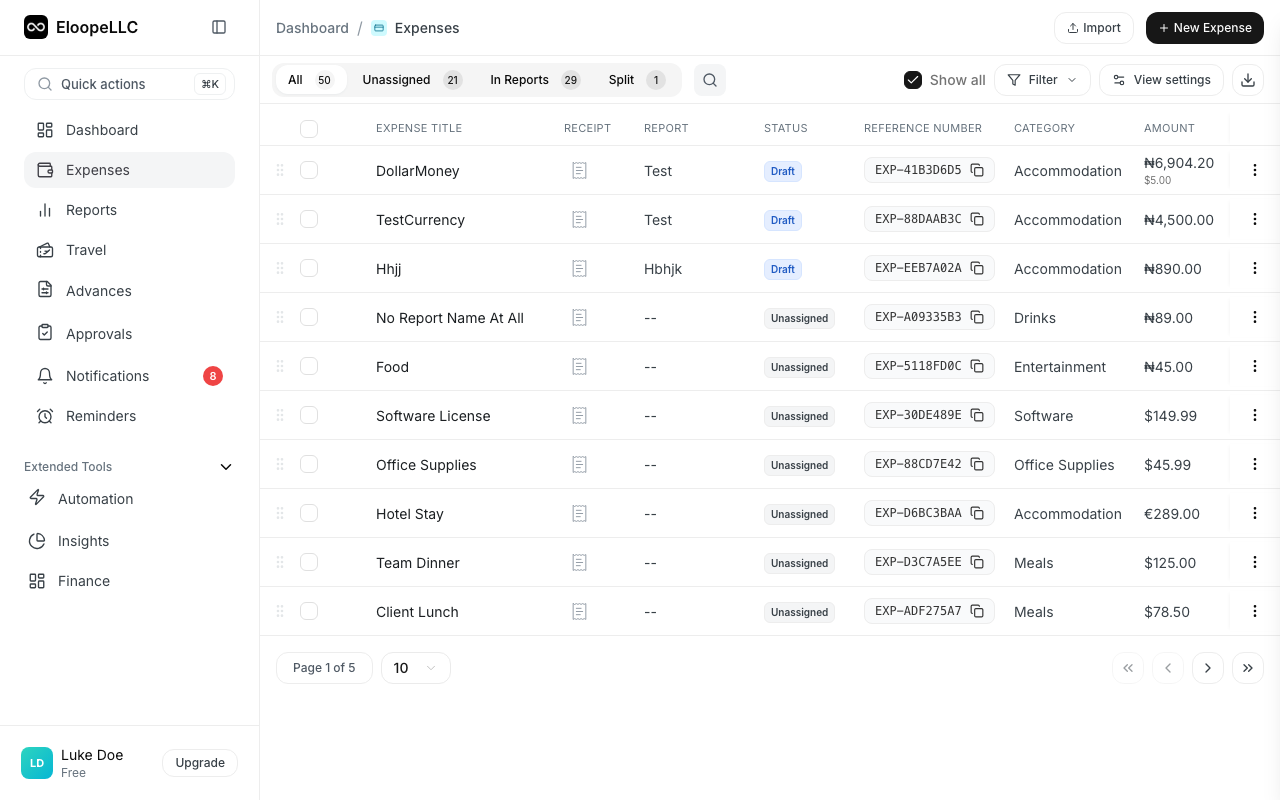
Warning: You cannot split an expense that has already been submitted or approved. Split the expense before adding it to a report.
Auto-balance
When you change one participant's share on a Custom or Percentage split, the remaining participants don't automatically re-balance — they keep whatever you entered. Turn on the Auto-balance toggle at the top of the panel to flip that behavior: editing one share spreads the difference evenly across the others so the total always equals the expense amount.
Auto-balance is most useful while a split is still in flight. Once you're happy with the shares, toggle it off to lock the values in place.
Company reimbursement model
For organizations using Eloope's company reimbursement model, split expenses follow a structured workflow:
- The expense owner creates the split and assigns participants.
- Each participant receives a notification to review and accept their share.
- Once accepted, the participant can create their own expense record from the split.
- The participant adds their expense to a report and submits it for reimbursement.
Participant statuses flow through: Pending Review → Accepted → Submitted → Reimbursed.
Participants can also reject a split share with a reason if they believe it is incorrect.
Cost allocations
For internal accounting purposes, expenses can also be split by organizational unit using cost allocations. This is separate from peer-to-peer splits and is used for budget tracking.
Cost allocations let you divide an expense across:
- Departments: Allocate portions of the expense to different departments.
- Projects: Allocate by project for project-based budgeting.
- Cost Centers: Allocate by cost center for cross-functional spending.
Each allocation specifies either an amount or a percentage of the total expense.
Settlement tracking
Eloope tracks the reimbursement status of each split participant through the company reimbursement workflow. The split detail view shows:
- Participant list: Each participant with their share amount, percentage, and current status.
- Status progression: Pending Review → Accepted → Submitted → Reimbursed.
- Paid By: Who paid the original amount.
Participants who reject their share can provide a reason, and the expense owner can reassign or adjust the split accordingly.
Submitting split expenses
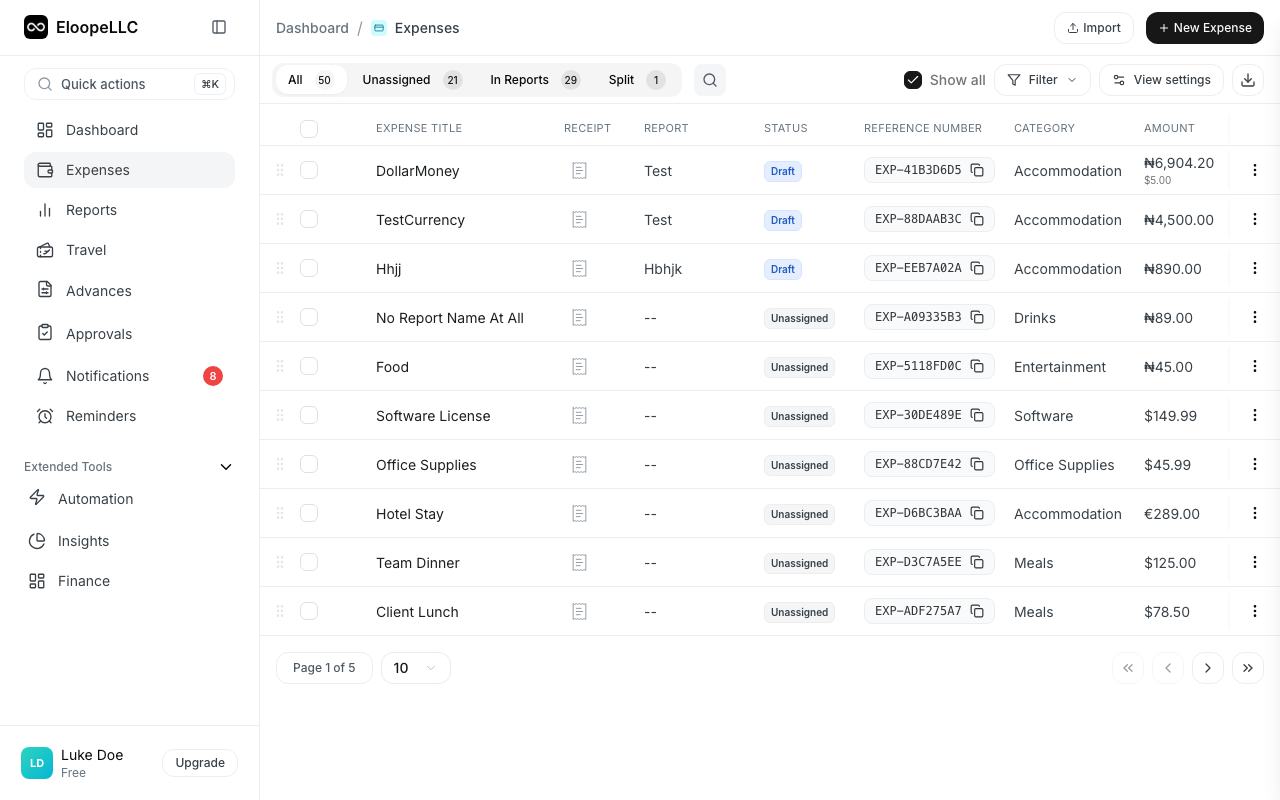
Only your share of a split expense gets included when you submit an expense report. The other participants' shares are tracked separately in their own accounts.
Note: Split expenses are available on the Starter plan and above.