

Learn when and how to modify or remove expenses in Eloope.
Edit an expense
You can edit any expense that is in Unassigned status or attached to a Draft report.
- Navigate to Expenses in the left sidebar.
- Click the expense you want to edit.
- Make your changes to any field.
- Click Save.
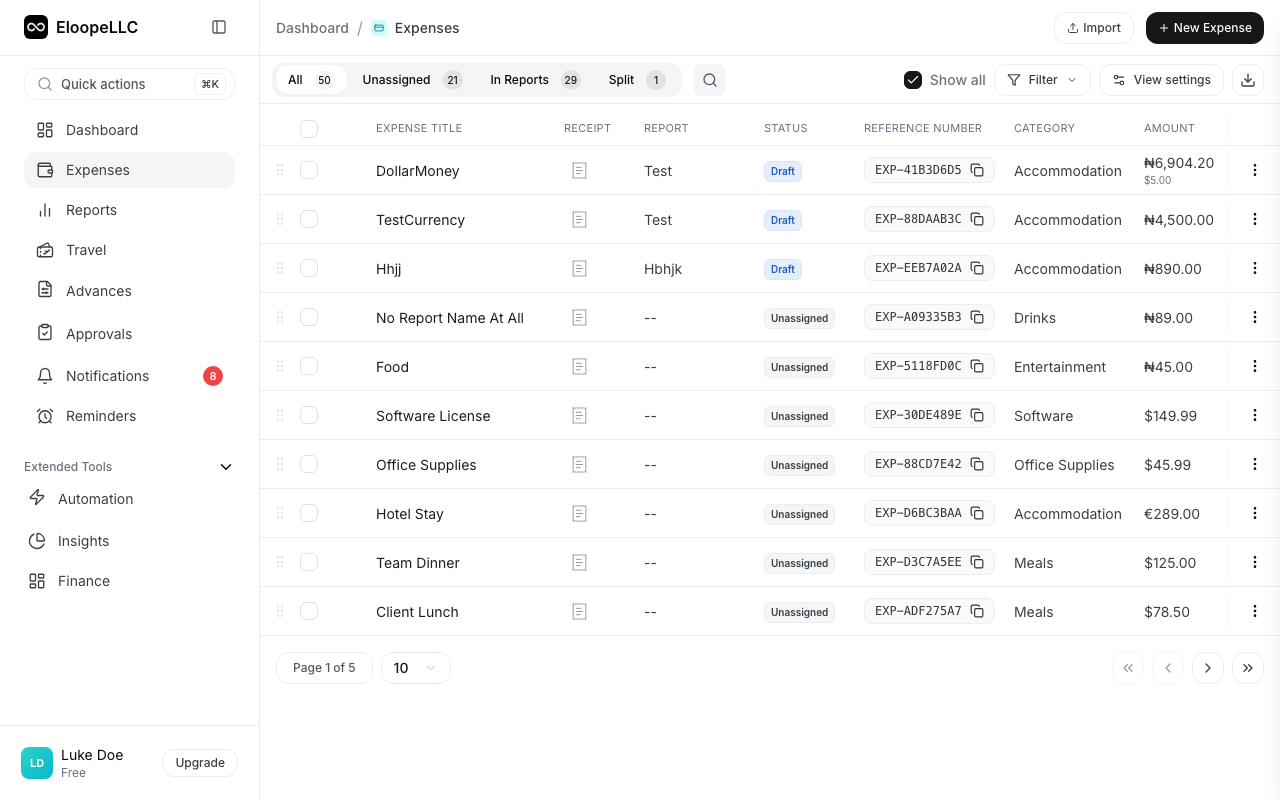
Warning: You cannot edit expenses that have been submitted or approved. If you need to correct an approved expense, use the Amendments feature.
Delete an expense
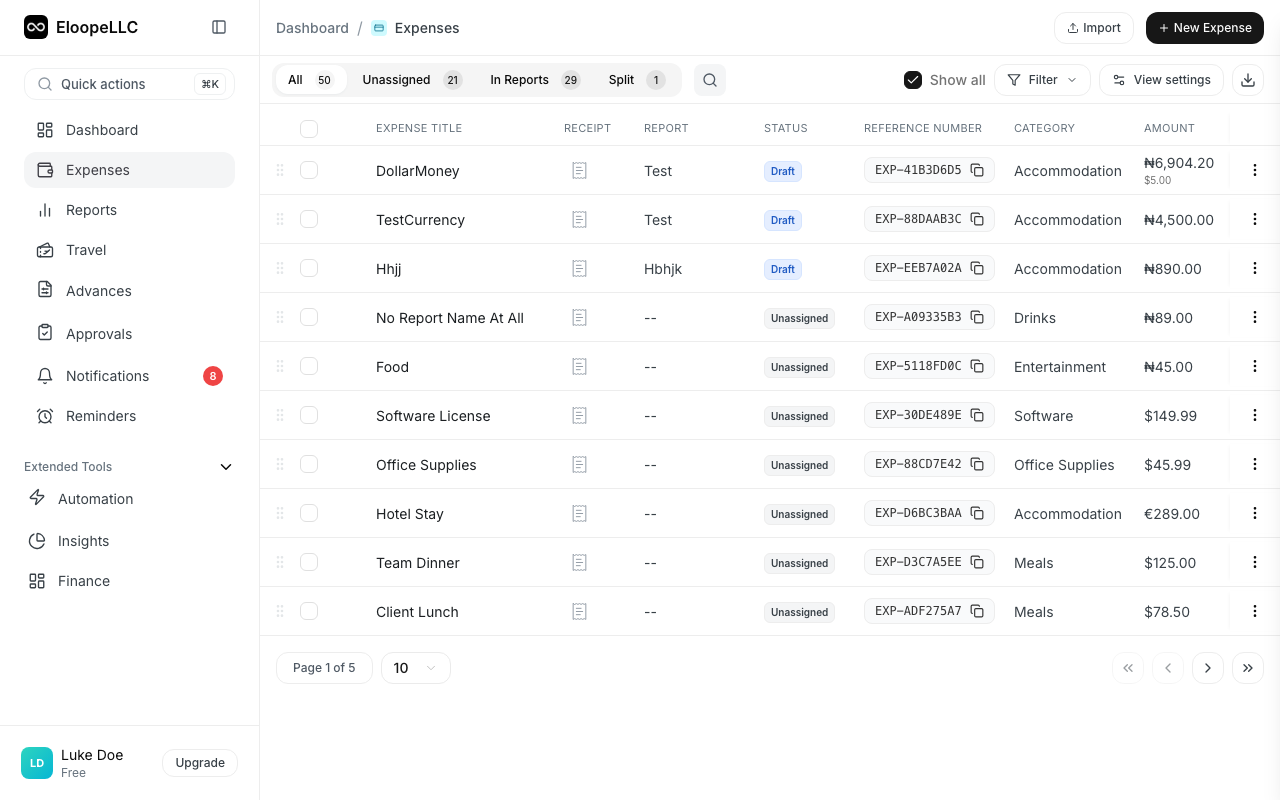
Only expenses in Unassigned status or in a Draft report can be deleted.
- Navigate to Expenses.
- Click the expense you want to remove.
- Click the Delete button.
- Confirm the deletion when prompted.
Deleted expenses are permanently removed and cannot be recovered.
Bulk delete expenses
To delete multiple expenses at once:
- Navigate to Expenses.
- Select the checkbox next to each expense you want to delete.
- Click the Delete button in the bulk actions bar that appears at the top.
- Confirm the deletion.
Note: Bulk delete only works for expenses in Unassigned status or in a Draft report. If your selection includes submitted or approved expenses, those will be skipped.
When you cannot edit or delete
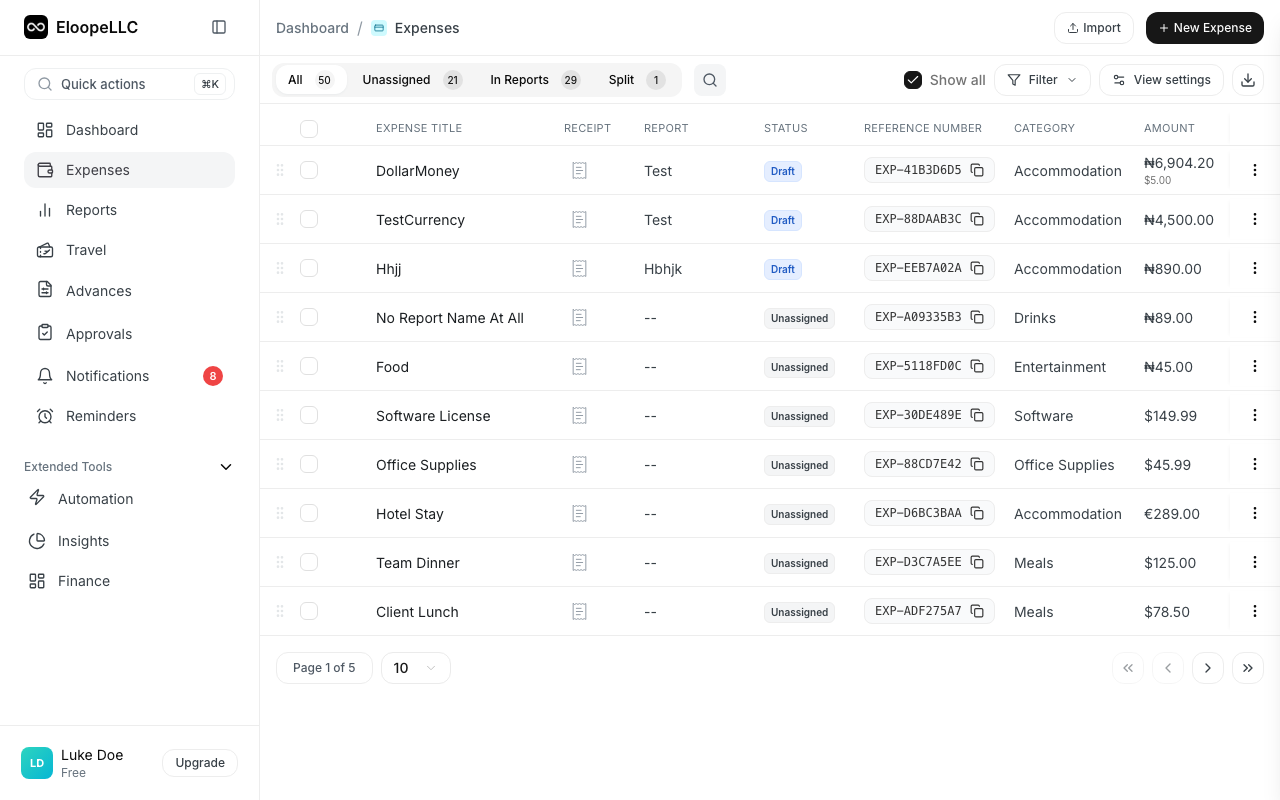
Expenses are locked once they are submitted for approval. Here is a summary:
| Status | Can edit? | Can delete? |
|---|---|---|
| Unassigned | Yes | Yes |
| Draft (in unsubmitted report) | Yes | Yes |
| Pending | No | No |
| Approved | No | No |
| Reimbursed | No | No |
| Rejected | Yes | Yes |
Note: Rejected expenses return to an editable state. You can fix the issue and resubmit them.
Correcting approved expenses
If an approved expense contains an error, you cannot edit it directly. Instead, request an amendment. Amendments let you correct details, adjust amounts, void an expense, or split it: all while preserving a full audit trail.
See Expense amendments for details.