

Eloope uses optical character recognition (OCR) to read your receipts and automatically fill in expense details. This saves time and reduces manual data entry.
What OCR does
When you scan a receipt, Eloope's OCR engine extracts key information and populates the expense form for you:
- Merchant name: The business that issued the receipt.
- Amount: The total charged.
- Date: When the transaction took place.
- Currency: The currency shown on the receipt.
This means you can create an expense in seconds instead of typing everything manually.
How to scan a receipt
- Navigate to Expenses and click New Expense.
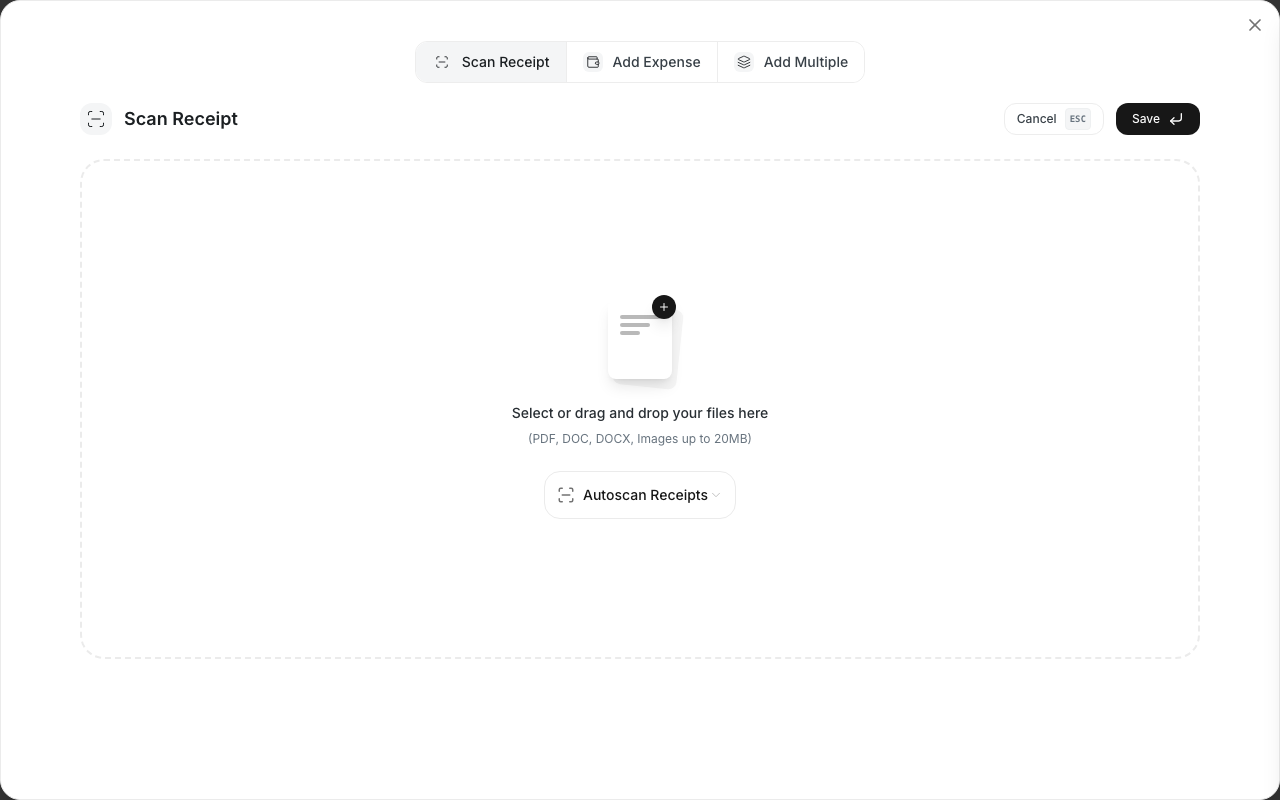
- Click Scan Receipt at the top of the expense form.
- Upload a photo or PDF of your receipt.
- Wait a few seconds while Eloope processes the image.
- Review the auto-filled fields and make any corrections.
- Click Save.
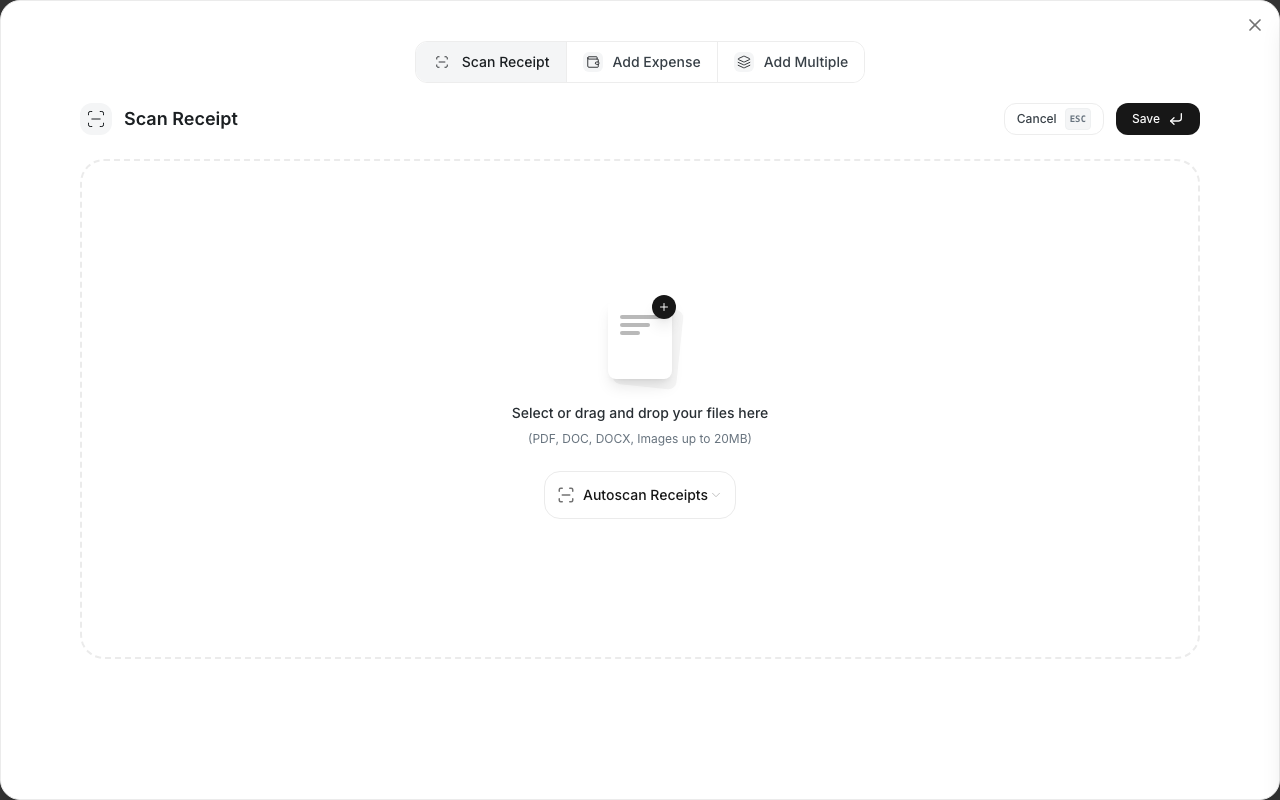
Supported formats
Eloope OCR accepts the following file types:
- JPG: Standard photo format from your phone camera.
- PNG: Screenshot or image format.
- PDF: Scanned or digital receipts in PDF format.
Tips for best results
OCR accuracy depends on the quality of the image. Follow these guidelines:
- Use good lighting. Avoid shadows and glare on the receipt.
- Capture the full receipt. Make sure all edges and text are visible in the frame.
- Keep the image clear. Avoid blurry or out-of-focus photos.
- Use a flat surface. Lay the receipt flat before taking a photo to prevent warping.
- Avoid crumpled receipts. Smooth out any folds or wrinkles before scanning.
Note: OCR accuracy is typically between 90-95%. Always review the extracted data before saving.
Review and correct
After scanning, Eloope highlights the fields it filled in automatically. Take a moment to:
- Verify the merchant name is correct.
- Check that the amount matches your receipt.
- Confirm the date and currency.
- Add any fields OCR cannot extract, such as category, cost center, or description.
If OCR misses something or gets a value wrong, simply click the field and type the correct information. You can always enter all details manually if you prefer.
Note: OCR works best with printed receipts. Handwritten receipts may produce less accurate results.