

After your trip is complete, link all remaining expenses, settle any cash advances, and close the trip to finalize your travel record.
Link all travel expenses
Before closing a trip, make sure every expense from your travel is accounted for:
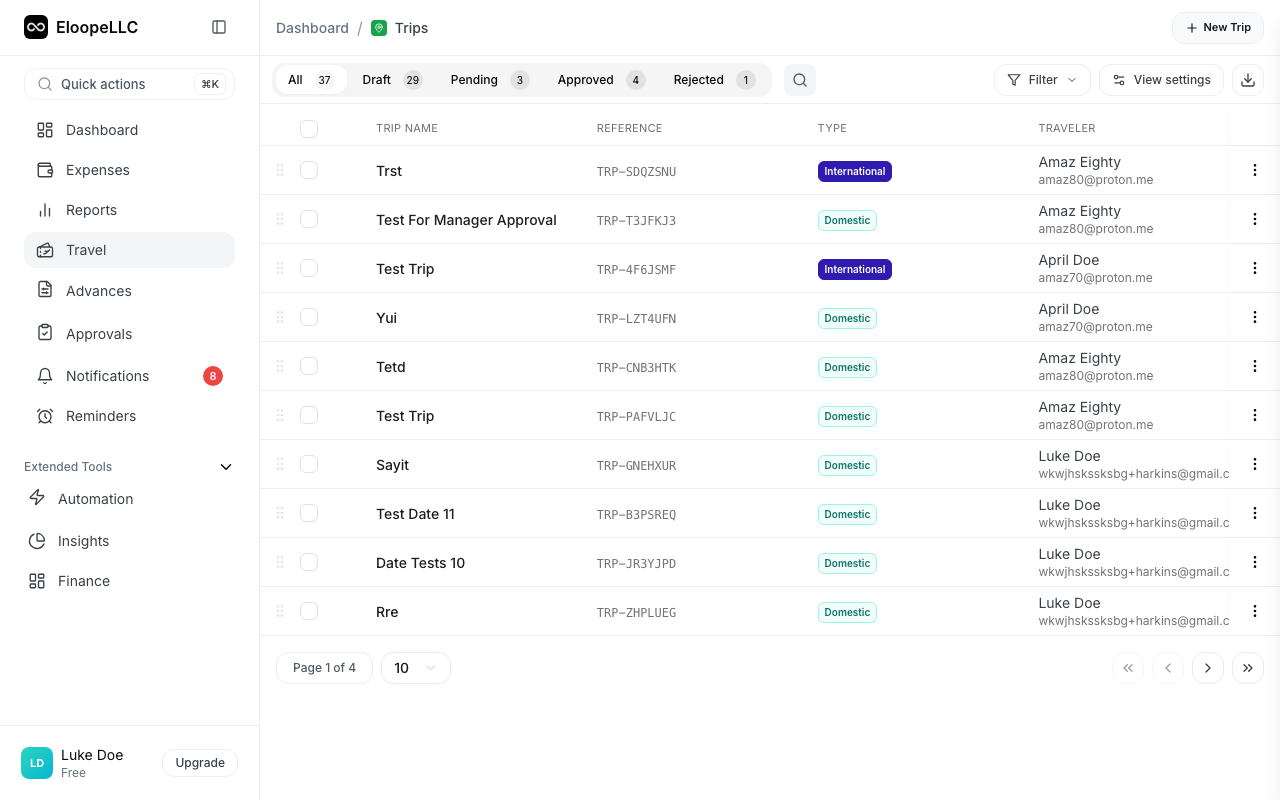
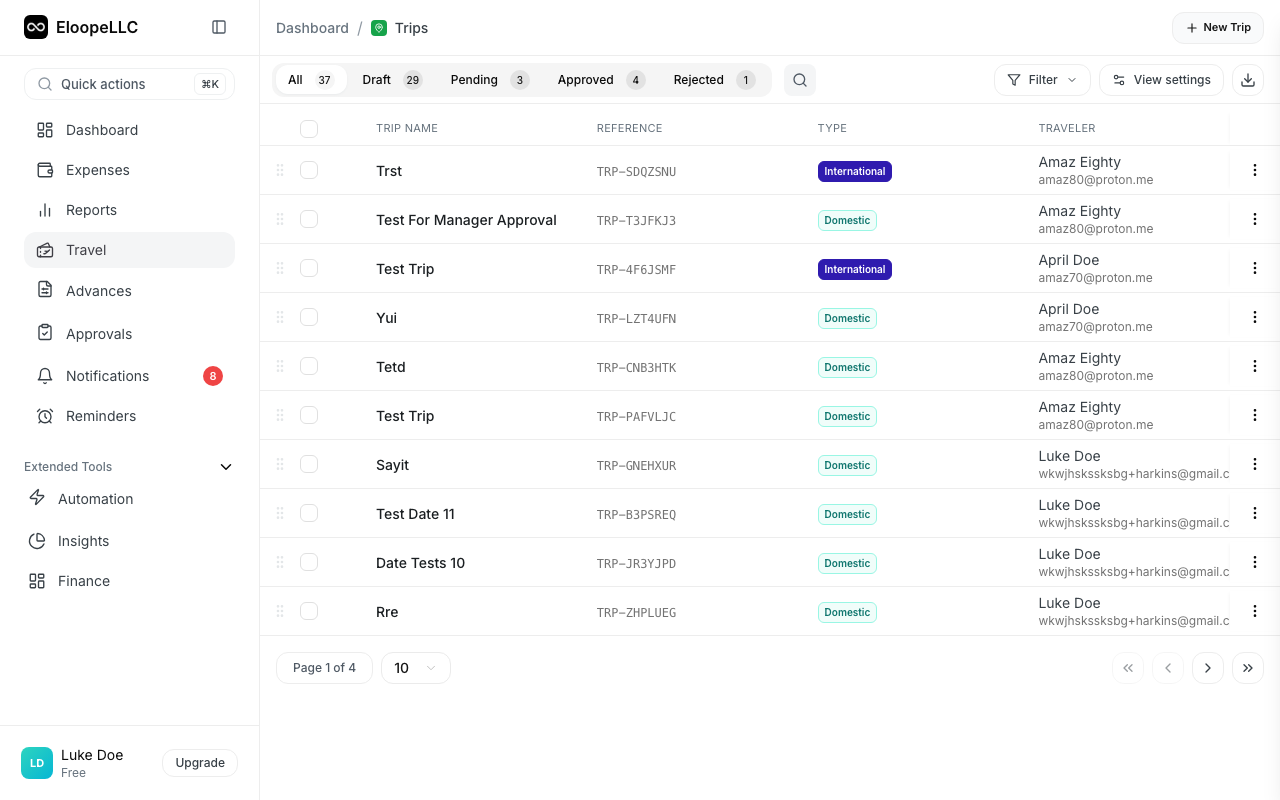
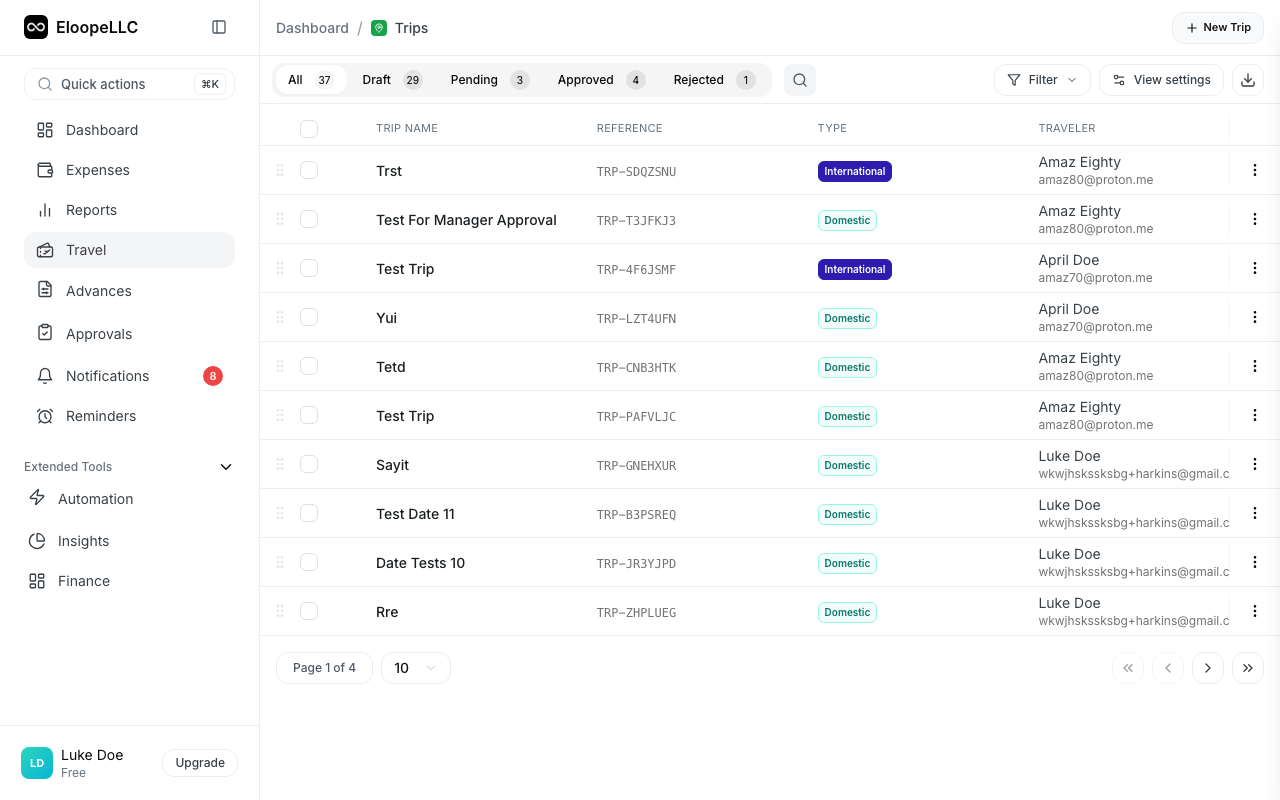
- Navigate to Trips and open the trip you want to close.
- Click Add Expense to attach any remaining expenses.
- Review the list of linked expenses to confirm nothing is missing.
Check items like meals, ground transportation, parking, and incidentals. These are easy to overlook after returning from a trip.
Review trip totals
The trip detail page shows a summary comparing your actual spending to the estimated budget:
- Estimated Budget: The amount you projected when creating the trip.
- Actual Spend: The total of all linked expenses.
- Variance: The difference between estimated and actual (over or under budget).
- Expenses by Category: A breakdown of spending across categories like flights, hotels, meals, and ground transport.
This gives you a clear picture of how your trip spending compared to the plan.
Settle cash advances
If you received a cash advance for the trip, it must be settled before closing:
- Open the trip and scroll to the Cash Advance section.
- Review the advance amount and the total expenses linked to the trip.
- Eloope calculates the balance automatically:
- If you spent more than the advance, the remaining amount is added to your reimbursement.
- If you spent less than the advance, you owe the difference back to your organization.
- Click Settle Advance to confirm the settlement.
Note: A trip cannot be closed until all linked cash advances are settled. If the advance settlement requires approval, it will go through your organization's standard approval workflow.
Close the trip
Once all expenses are linked and advances are settled:
- Open the trip.
- Click Close Trip in the top-right corner.
- Confirm the closure in the dialog that appears.
The trip status changes to Completed. A completed trip is locked from further changes: you cannot add, remove, or edit expenses after closing.
Warning: Closing a trip is permanent. Make sure all expenses are linked and advances are settled before closing. If you need to make changes after closing, contact your admin.
Trip analytics
After completing, the trip remains visible in your Trips list as a complete record. You and your manager can review:
- Total spent: The final amount across all linked expenses.
- Budget variance: Whether you came in over or under budget, and by how much.
- Expenses by category: How spending was distributed across flights, hotels, meals, and other categories.
- Timeline: A chronological view of all expenses and travel documents.
Your finance team can also view trip analytics across the organization to identify spending trends and optimize travel budgets.
Bulk delete trips
You can delete multiple trips at once from the Trips list:
- Navigate to Trips in the left sidebar.
- Select the trips you want to delete using the checkboxes.
- Click Delete in the action bar.
- Confirm the deletion.
Warning: Only trips in Draft status can be deleted. Submitted, approved, active, or closed trips cannot be deleted. If you need to cancel a submitted trip, recall it first to return it to draft status.