

Trips go through an approval process just like expense reports. Your manager reviews the trip details, budget, and itinerary before you travel.
Submit a trip for approval
Before you submit, make sure your trip has all the required information filled in: destination, dates, purpose, and estimated budget. You can also attach travel documents and link a cash advance request.
- Open the trip you want to submit.
- Review the trip details and confirm everything is accurate.
- Click Submit in the top-right corner.
- Confirm the submission in the dialog that appears.
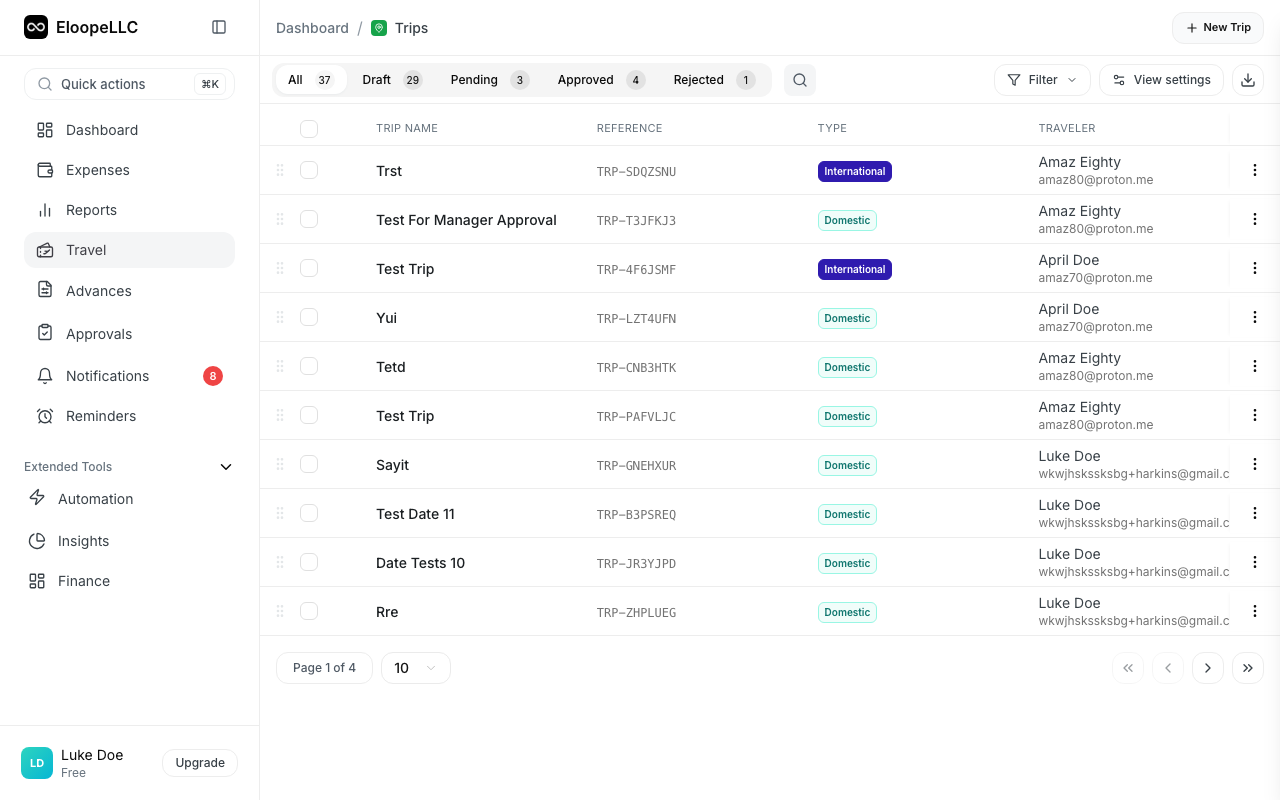
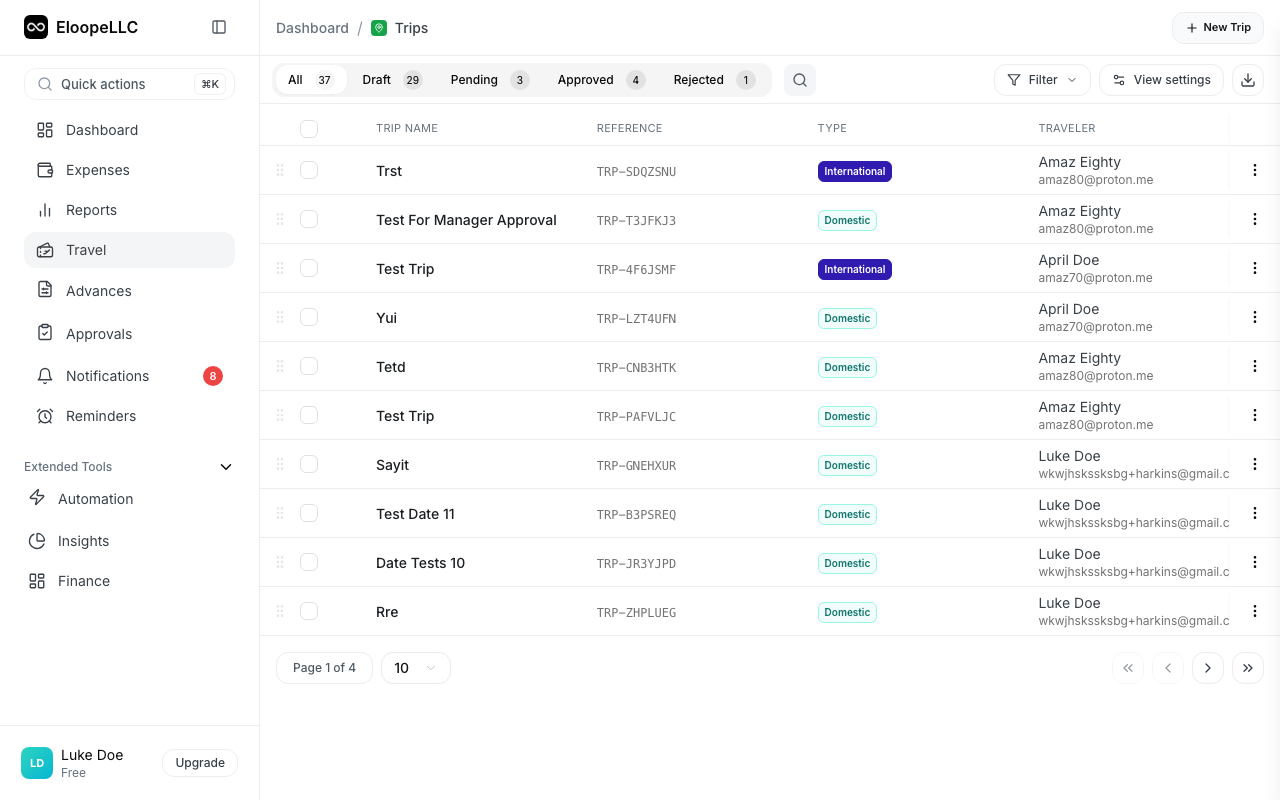
Your trip status changes from Draft to Pending and moves into your manager's approval queue.
What your approver reviews
When your manager opens your trip, they see:
- Trip details: Destination, dates, purpose, and trip type.
- Estimated budget: Your projected total spend for the trip.
- Itinerary: Any travel documents you uploaded (flights, hotels, car rentals).
- Cash advance requests: Any advance linked to the trip.
- Policy compliance: Whether the trip meets your organization's travel policies.
Policy validation
When you submit a trip, Eloope automatically checks it against your organization's travel policies. The system validates rules such as:
- Budget limits: Whether the estimated budget exceeds the allowed amount for the trip type or destination.
- Flight class: Whether the selected cabin class is within policy (e.g., economy for domestic flights).
- Advance booking: Whether flights and hotels were booked far enough in advance.
- Hotel rates: Whether nightly rates fall within the allowed per-diem or rate cap.
- Trip duration: Whether the trip length is within acceptable limits.
If a policy violation is detected, Eloope flags the trip and notifies both you and your approver.
Policy exceptions
Sometimes a trip needs to go outside policy: for example, booking a higher flight class for a long-haul international trip. In these cases:
- The system flags the violation when you submit.
- You can add a justification note explaining why the exception is needed.
- Your approver reviews the flag and decides whether to grant an exception or reject the trip.
Note: Policy exceptions are logged for audit purposes. Your finance team can review all granted exceptions in the analytics dashboard.
Multi-level approval
Your organization may require trips to pass through multiple approvers. For example, a domestic trip might need only your direct manager's approval, while an international trip above a certain budget requires both your manager and a finance director.
The approval chain is configured by your admin. You can track the progress of each approval step from your trip detail page.
| Approval step | Status shown |
|---|---|
| First approver reviewed | Partially Approved |
| All approvers reviewed | Approved or Rejected |
After approval
Once your trip is fully approved:
- You can request a cash advance for the trip if you have not already.
- You can start incurring expenses and link them to the trip.
- The trip status moves to Approved and then to In Progress once the start date arrives.
Warning: If your trip is rejected, review the approver's comments, make the necessary changes, and resubmit. You cannot request advances or link expenses to a rejected trip.