

Set up your Eloope account, complete your profile, and log in for the first time.
Invited users
Most users join Eloope through an invitation from their organization admin. Here is how to get started:
- Check your inbox for an email from Eloope with the subject "You've been invited to join Eloope"
- Click Accept Invitation
- Create a password (minimum 8 characters, must include a number and uppercase letter)
- Click Create Account
You are now logged in and can see your dashboard.

Note: Invitation links expire after 7 days. If your link has expired, ask your admin to resend the invitation.
Self-registration
If you are setting up a new organization on Eloope:
- Go to the Eloope signup page
- Enter your full name, work email, and password
- Enter your organization name
- Click Create Account
- Verify your email by clicking the confirmation link sent to your inbox
After verification, you are logged in as the organization admin. You can invite team members from Admin Settings > Users.
Complete your profile
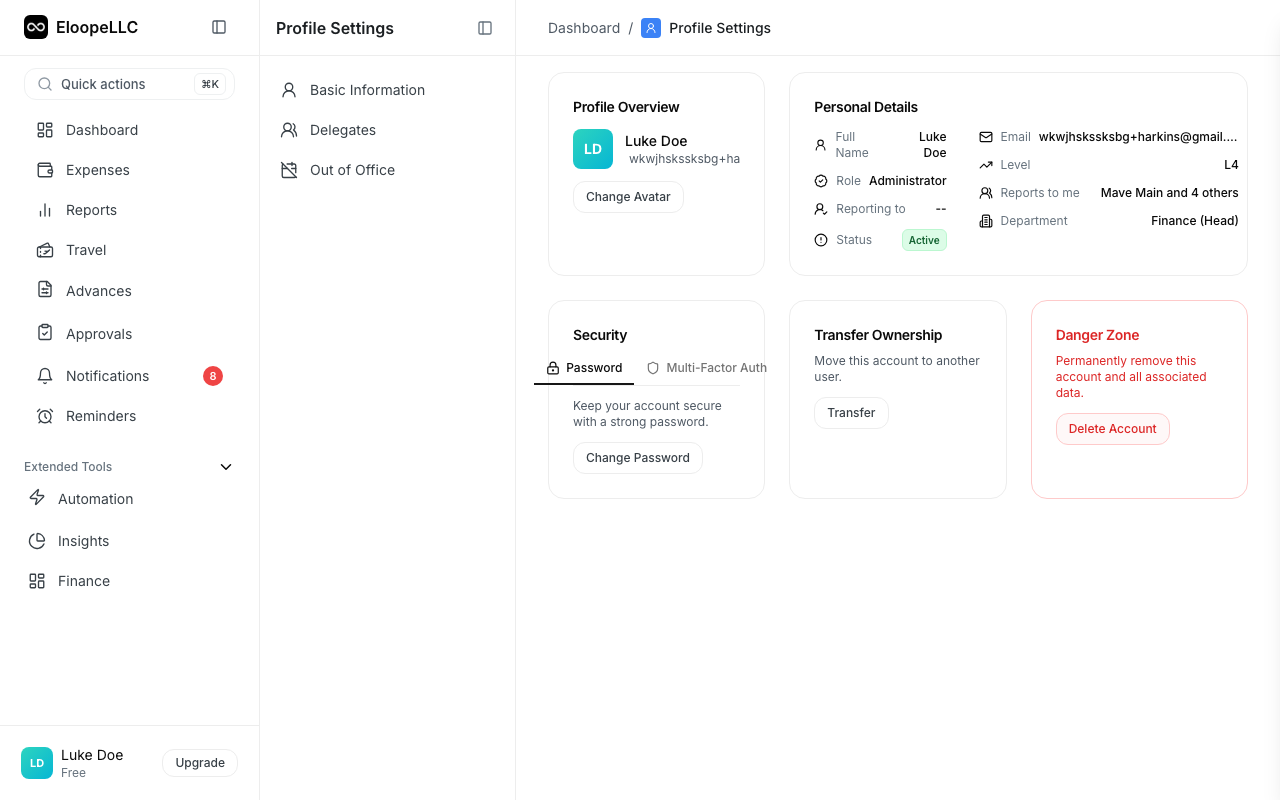
After your first login, fill out your profile so your team can identify you in reports and approvals.
- Click your avatar in the top-right corner
- Select Profile Settings
- Add your full name and job title
- Upload a profile photo (optional but recommended)
- Click Save Changes
First login experience
What you see after logging in depends on your role.
Organization admins are guided through an onboarding wizard that covers setting up departments, configuring expense categories, defining approval workflows, and inviting team members.
Invited users land on the dashboard with key metrics, quick actions, and recent activity. If your admin has configured the system, you can start creating expenses immediately.
Reset your password
If you forget your password:
- Go to the Eloope login page
- Click Forgot Password
- Enter the email address associated with your account
- Click Send Reset Link
- Check your inbox and click the reset link
- Enter your new password and confirm it
- Click Reset Password
You are redirected to the login page. Sign in with your new password.
Note: Password reset links expire after 1 hour. If the link has expired, request a new one.
Set up multi-factor authentication
MFA adds an extra layer of security to your account. It is optional but recommended.
- Click your avatar in the top-right corner
- Select Profile Settings
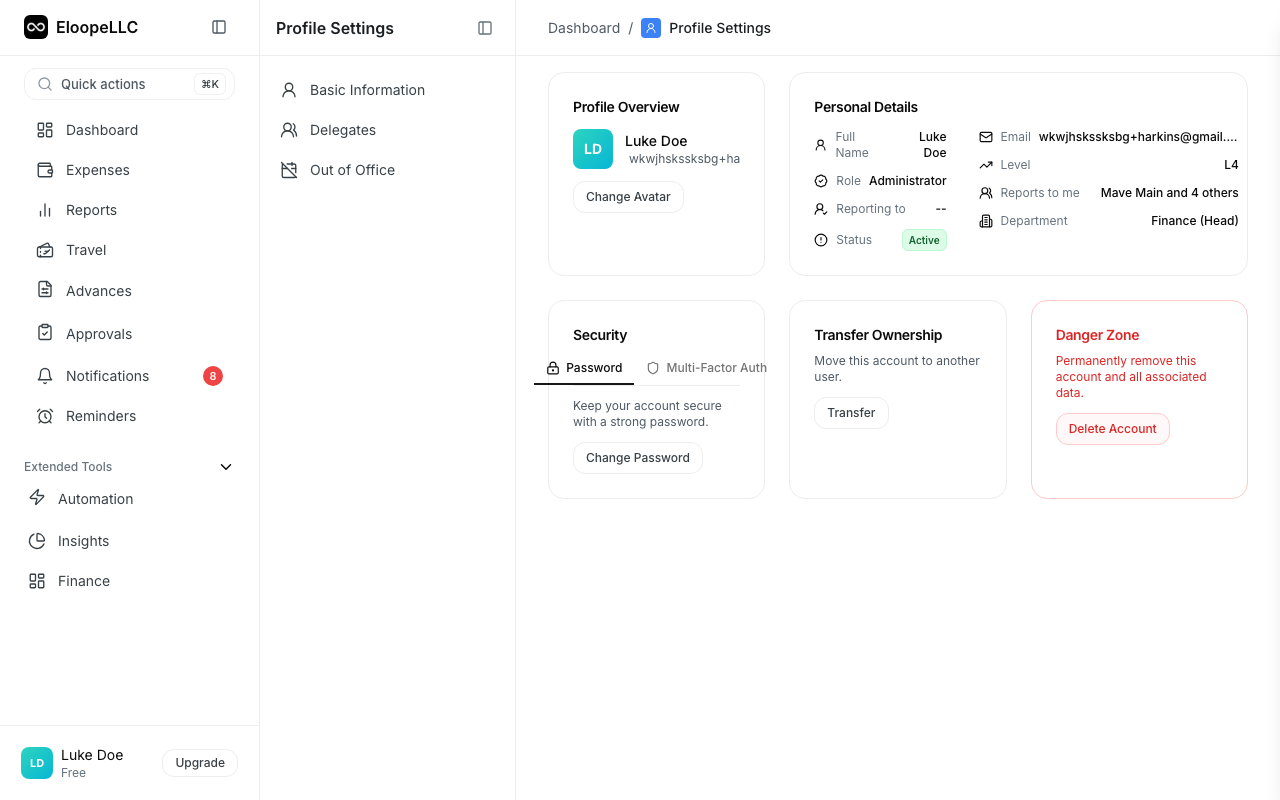
- Go to the Security tab
- Click Enable MFA
- Open your authenticator app (Google Authenticator, Authy, or similar)
- Scan the QR code displayed on screen
- Enter the 6-digit verification code from your authenticator app
- Click Verify and Enable
Warning: Save your recovery codes in a safe place. If you lose access to your authenticator app, you will need these codes to log in.