

The dashboard is the first screen you see when you log in. It comes in two modes: Classic and Chat.
Dashboard modes
Eloope offers two ways to interact with your dashboard.
Classic mode displays widgets, metrics, and charts. This is the default view.
Chat mode opens Luna, the AI assistant. You can create expenses, check report statuses, and navigate the platform using natural language.
Switch between modes using the mode toggle in the top-right corner of the dashboard.
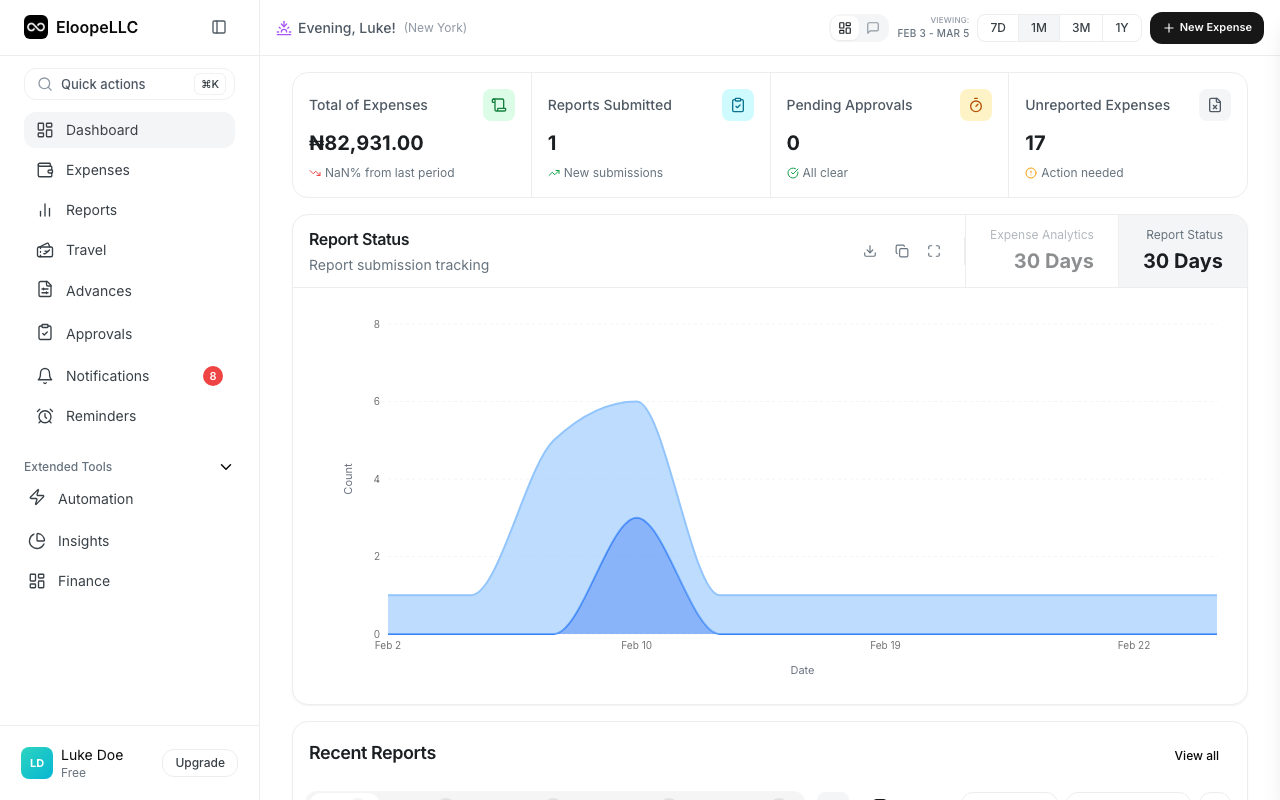
Classic mode
Top metrics
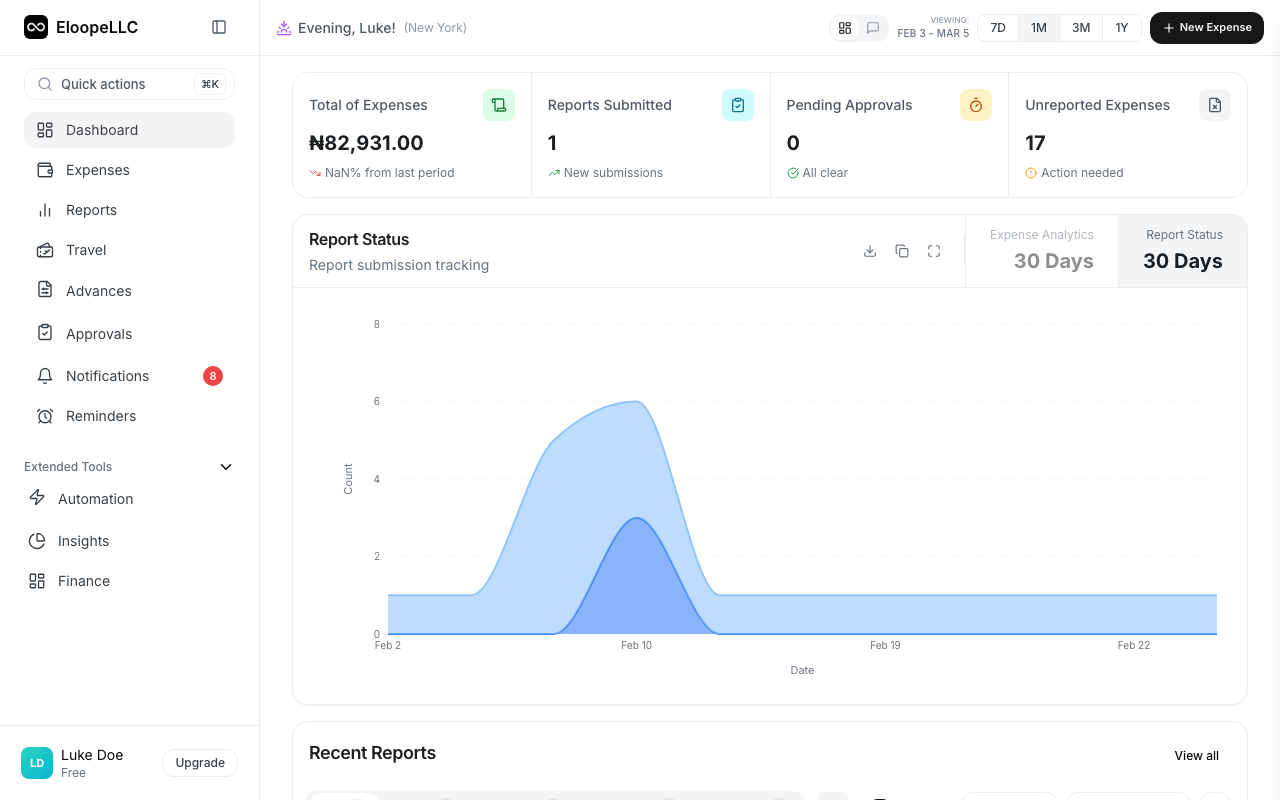
Four summary cards are displayed at the top of the dashboard:
- Total Expenses: Sum of all your expenses for the selected time period
- Reports Submitted: Number of reports you have submitted, with status breakdown
- Pending Approvals: Reports waiting for approval (visible to managers and finance)
- Reimbursements: Total amount reimbursed and pending reimbursement
Click any metric card to navigate to the related detail page.
Quick actions
The Quick Actions panel gives you one-click access to common tasks:
- New Expense: Create an expense entry
- New Report: Start a new expense report
- New Trip: Set up a trip with budget tracking
- New Advance: Request a cash advance
Charts
Two charts help you understand your spending patterns:
Spending by category: A pie chart showing how your expenses break down across categories like Travel, Meals, Office Supplies, and others.
Spending over time: A bar chart showing your daily or weekly spending trend for the selected period.
Below the charts, a recent expenses list shows your latest expense entries with merchant, amount, date, and status.
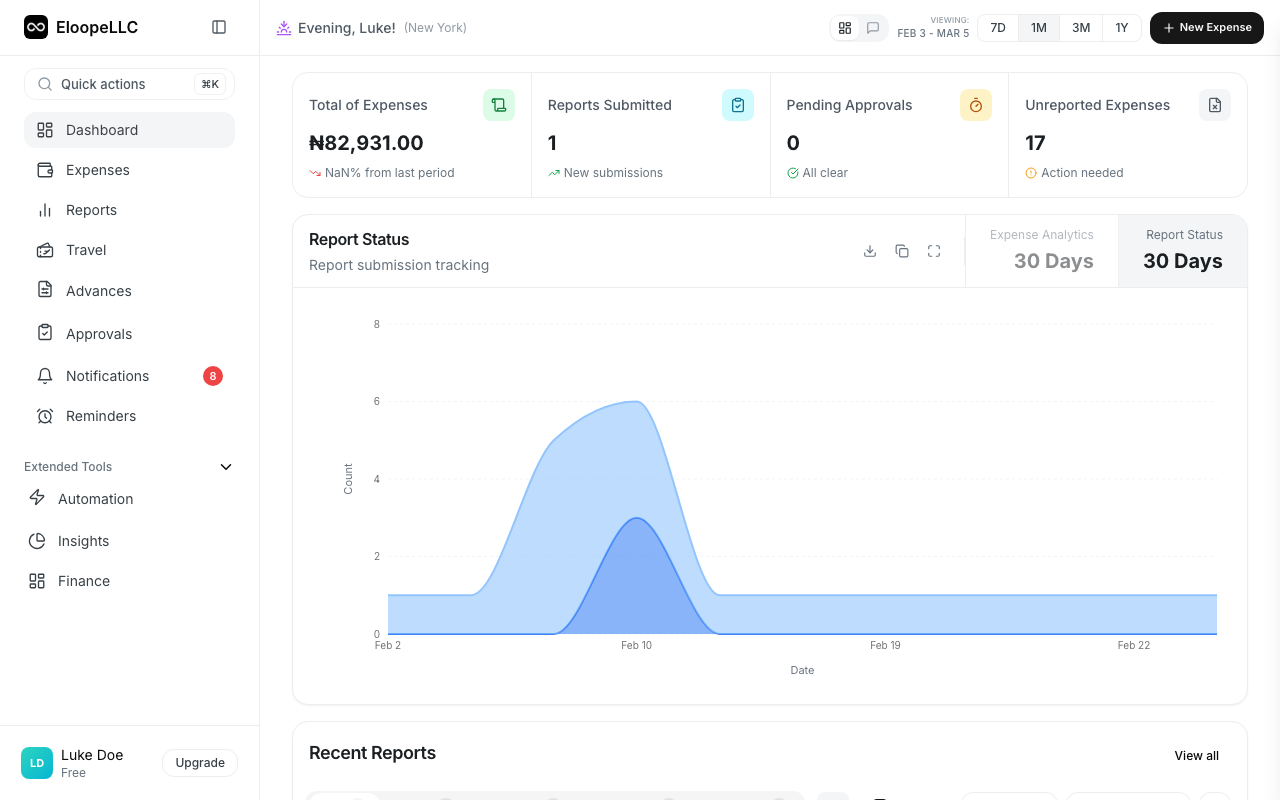
Manager view
Managers can toggle between Personal View and Team View using the view switcher above the metrics.
Personal View shows your own expenses and reports. Team View shows aggregated metrics for your direct reports, including pending approvals and team spending trends.
Time range selector
Use the date range dropdown in the top-right corner to filter all dashboard metrics. Options include Today, Last 7 Days, Last 30 Days, This Month, This Quarter, This Year, and Custom Range.
AI Chat mode
Switch to AI Chat mode to interact with Luna, the AI assistant. The mode switcher shows two buttons: Classic view and AI Chat.
Luna can help you:
- Create expenses using natural language (e.g., "Add a $45 lunch at Olive Garden yesterday")
- Check the status of your reports
- Navigate to any page in the platform
- Answer questions about your spending
Type your message in the chat input and Luna responds instantly. When Luna performs an action (like creating an expense), she shows a confirmation summary and asks you to approve before executing.
Note: AI Chat mode is available on Starter, Business, and Enterprise plans. If you are on the Lite plan, the mode switcher will not appear.
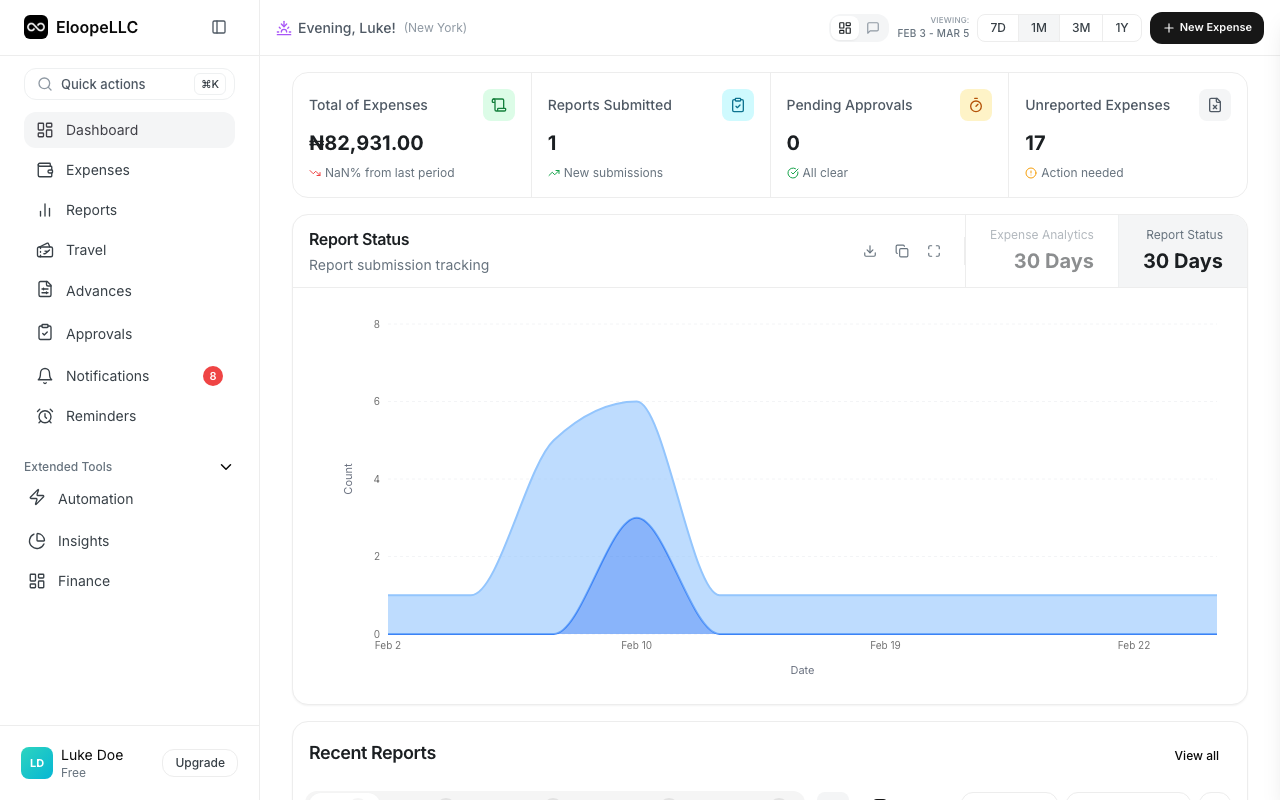
Sidebar navigation
The left sidebar provides access to every section of Eloope:
- Dashboard: Home screen with metrics and quick actions
- Expenses: View, create, and manage individual expenses
- Reports: Group expenses into reports for submission
- Trips: Organize travel-related expenses
- Advances: Request and manage cash advances
- Approvals: Review and approve reports (managers and finance)
- Automation: Configure automated workflows and rules
- Analytics: Detailed spending reports and visualizations
- Finance: Process reimbursements and payments (finance team)
- Notifications: View alerts and updates
- Admin Settings: Configure system settings (admins only)
Note: Some sidebar items are only visible based on your role and permissions. For example, Admin Settings is only shown to users with the admin role.