

When you are unavailable, you can delegate your approval authority to a trusted colleague. They can approve and reject items on your behalf so your team's expense reports are not held up while you are away.
Note: Approval delegation and out-of-office features are available on Business and Enterprise plans.
Two ways to delegate
Eloope offers two delegation methods depending on your situation.
Permanent delegate
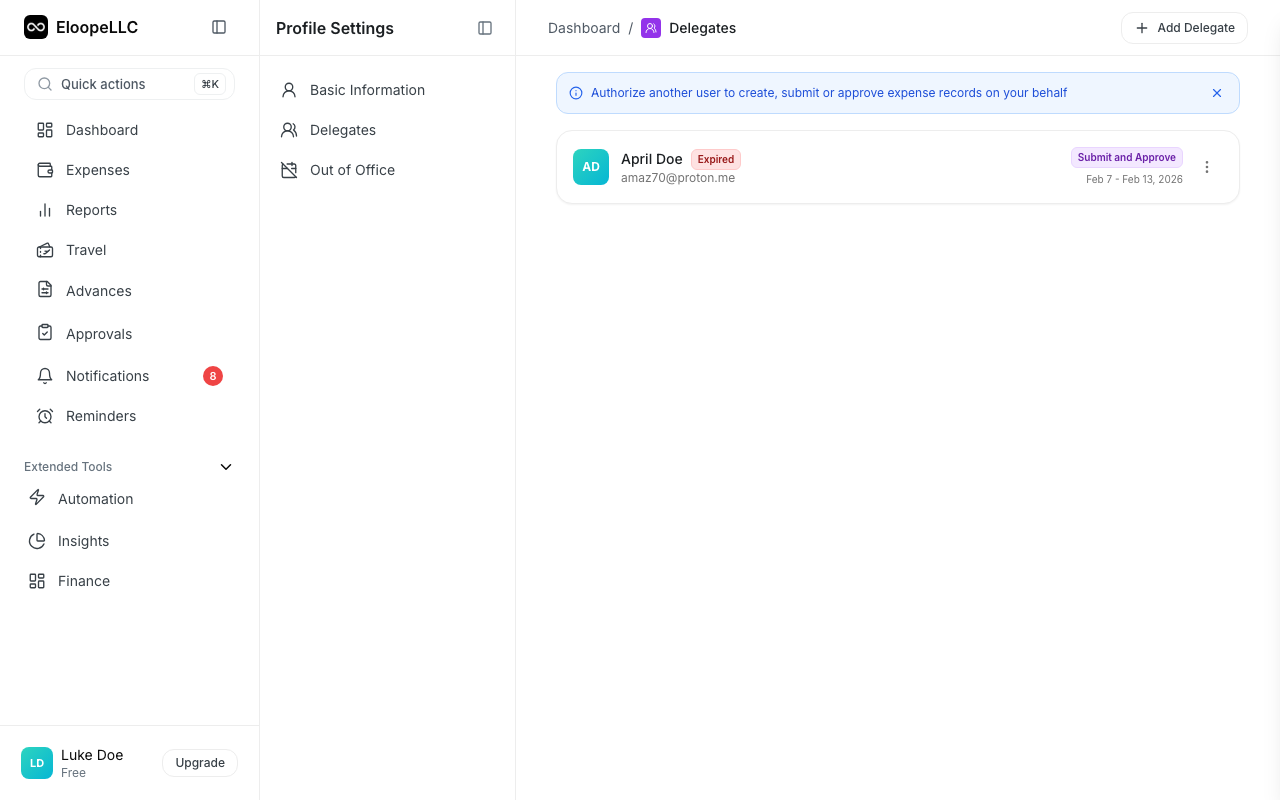
Assign a colleague who can always act on your approvals. Use this when you want a backup approver available at all times.
- Go to Profile Settings > Delegates.
- Click Add Delegate.
- Search for and select the person you want to delegate to.
- Click Save.
Your delegate can now review and act on any item in your approval queue at any time.
Out of office delegation
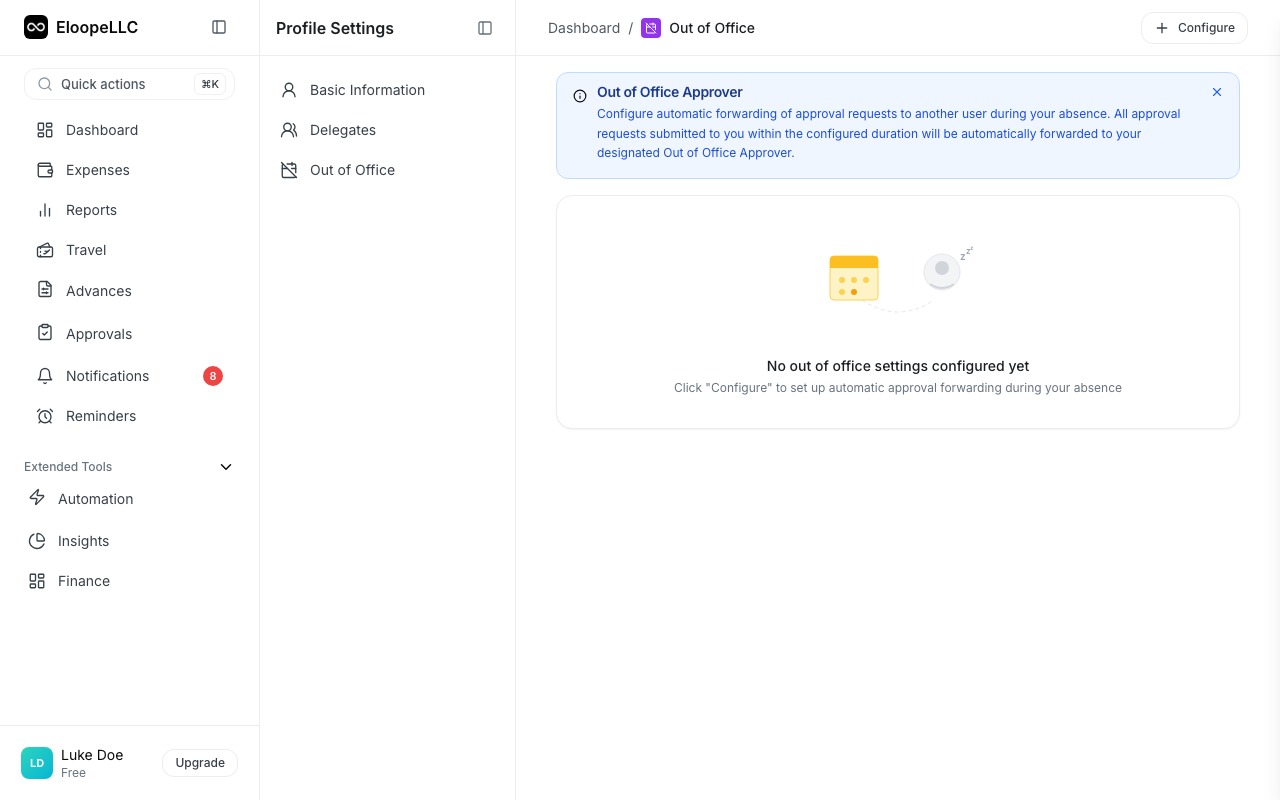
Set a specific date range during which approvals automatically route to your delegate. Use this for planned vacations, business travel, or leave.
- Go to Profile Settings > Out of Office.
- Toggle Out of Office on.
- Set your start date and end date.
- Select a delegate from the dropdown.
- Click Save.
During the date range you set, all new approval requests route directly to your delegate. When the end date passes, routing returns to you automatically.
What delegates can do
Your delegate has the same approval authority as you for the items routed to them. They can:
- Approve expense reports, trip requests, and cash advances
- Reject items with a reason
- Add comments during the review process
Audit trail
Every action taken by a delegate is fully logged. The audit trail records both the delegate's identity and your identity as the original approver.
For example, an approval record will show:
"Approved by Sarah Chen on behalf of James Park"
This ensures complete transparency and accountability, even when approvals are handled by a delegate.
Remove a delegate
You can revoke delegation at any time.
- Go to Profile Settings > Delegates.
- Find the delegate you want to remove.
- Click Remove.
- Click Confirm.
For out of office delegation, toggle Out of Office off or delete the date range entry.
Warning: Only delegate to someone you trust with approval authority. Their approvals carry your authority and are treated as your decisions for policy and audit purposes.