

The approval queue is your central hub for reviewing expense reports, trip requests, and cash advances. Everything that needs your attention appears in one place.
Open the approval queue
- Click Approvals in the left sidebar.
- The queue displays all items currently waiting for your review.
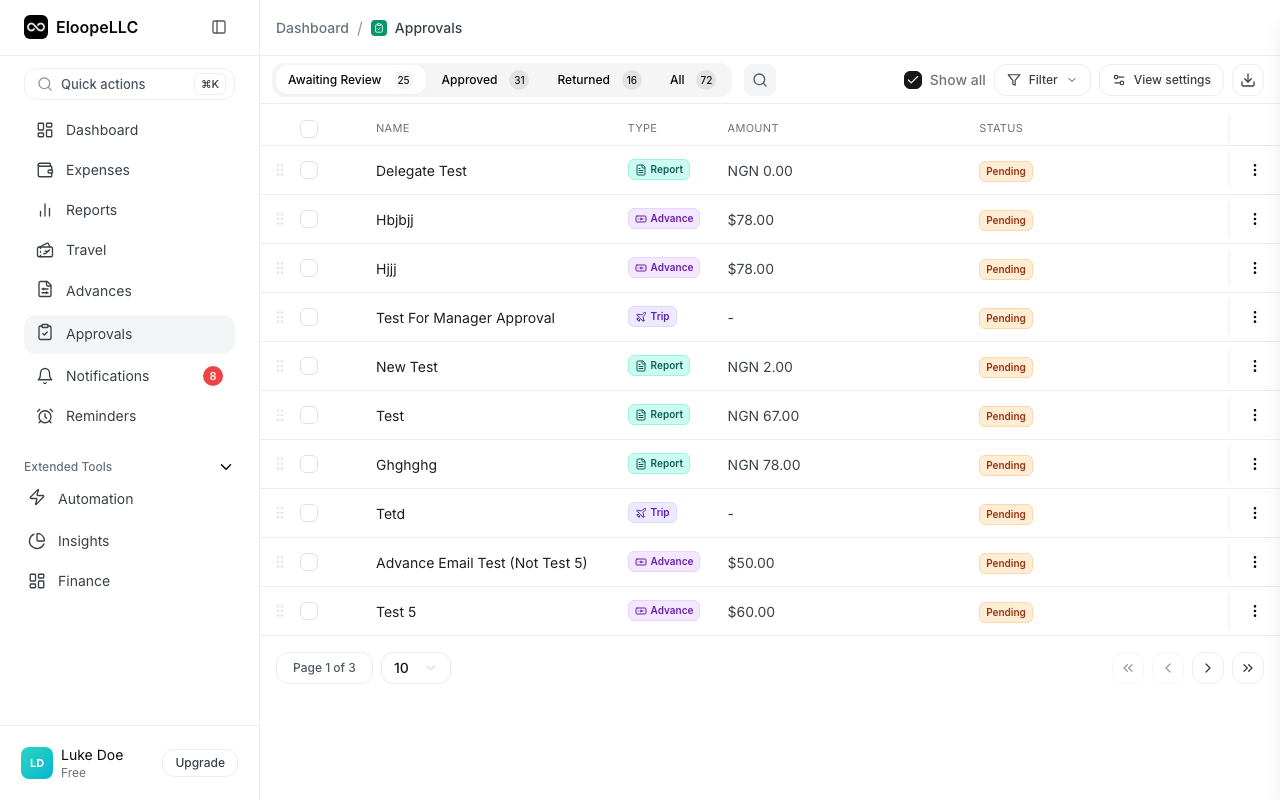
A badge on the Approvals sidebar item shows how many items need your attention. This count updates in real time as new items are submitted or you complete reviews.
Queue tabs
The approval queue is organized into four tabs:
- Awaiting Review: Items that need your action now.
- Approved: Items you have already approved.
- Returned: Items that were rejected and sent back to the submitter.
- All: Every item across all statuses.
Each tab displays a count of the items it contains.
What you'll see in the queue
Each item in the queue displays key information at a glance:
- Type: A badge indicating whether the item is a Report, Trip, or Advance.
- Name: The report name, trip name, or advance title.
- Amount: The total value in the relevant currency.
- Status: Pending, Approved, Rejected, Skipped, or Cancelled.
- Reference Number: A unique identifier for the item.
- Submitted By: Who submitted the item.
- Submitted To: The current approver.
- Approval Level: Which level in the approval chain (Level 1, Level 2, etc.).
- Created / Submitted date: When the item was created and submitted.
Filter and search
Use the filter bar at the top of the queue to narrow down what you see:
- Reference: Search by reference number.
- Name: Search by report or trip name.
- Approval Type: Show only Reports, Trips, or Advances.
- Status: Filter by Pending, Approved, Rejected, or other statuses.
- Submitted By: Search for a specific employee's submissions.
- Date Range: View items submitted within a specific time period.
- Amount Range: Filter by minimum and maximum amounts.
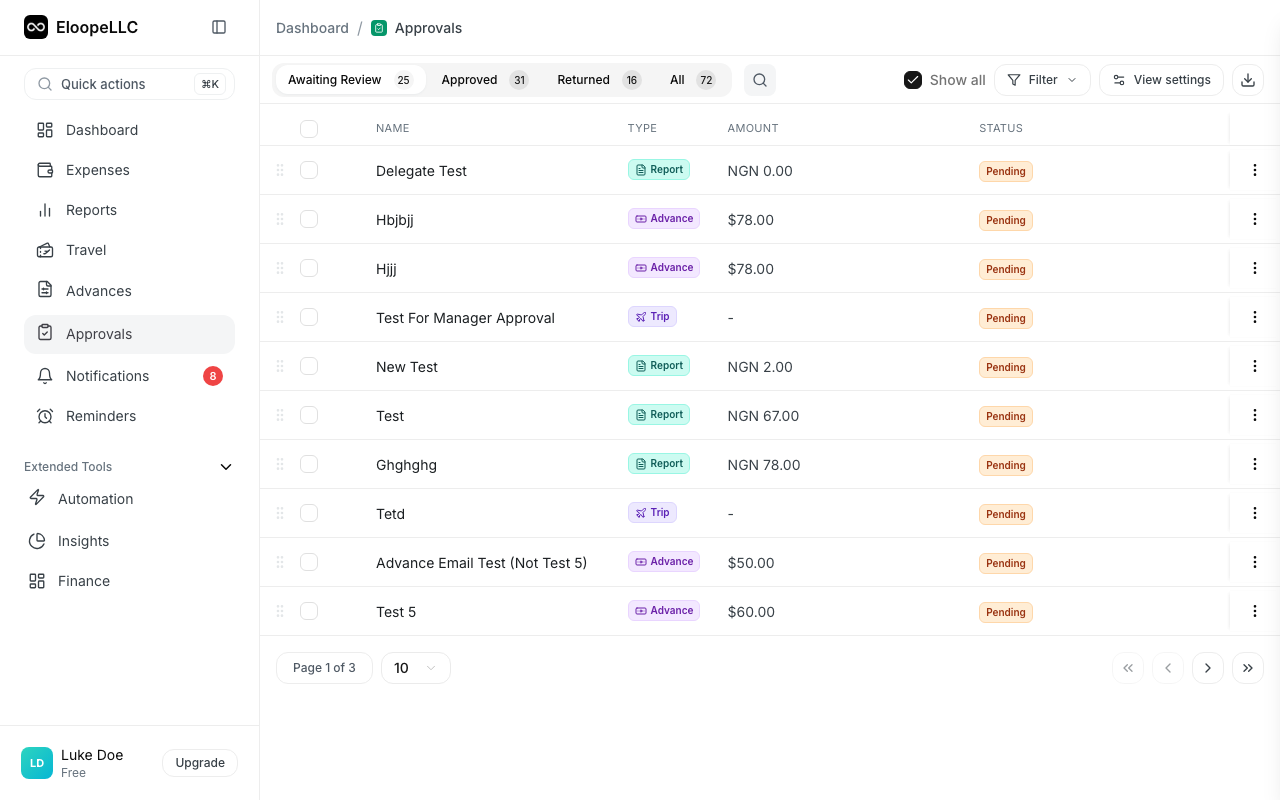
You can combine multiple filters. For example, show only expense reports over $500 submitted in the last 7 days.
Open an item for review
Click any item in the queue to open the full detail view. From there you can review receipts, check amounts, read descriptions, and approve or reject the item.
Note: You can also access pending approvals from the Pending Approvals card on your dashboard or directly from notification alerts.
Stay on top of approvals
Eloope sends notifications when new items land in your queue. Timely approvals keep the reimbursement process moving and help employees get paid faster.
If you will be away and unable to review approvals, consider setting up a delegate. See Delegate approvals for instructions.