

Fix issues on a rejected report and resubmit it for approval.
When a report is rejected
When your approver rejects a report, you receive an in-app notification and an email (if enabled). The notification includes the approver's reason for rejection.
The report status changes to Rejected and all expenses in the report are unlocked for editing.

Review the rejection
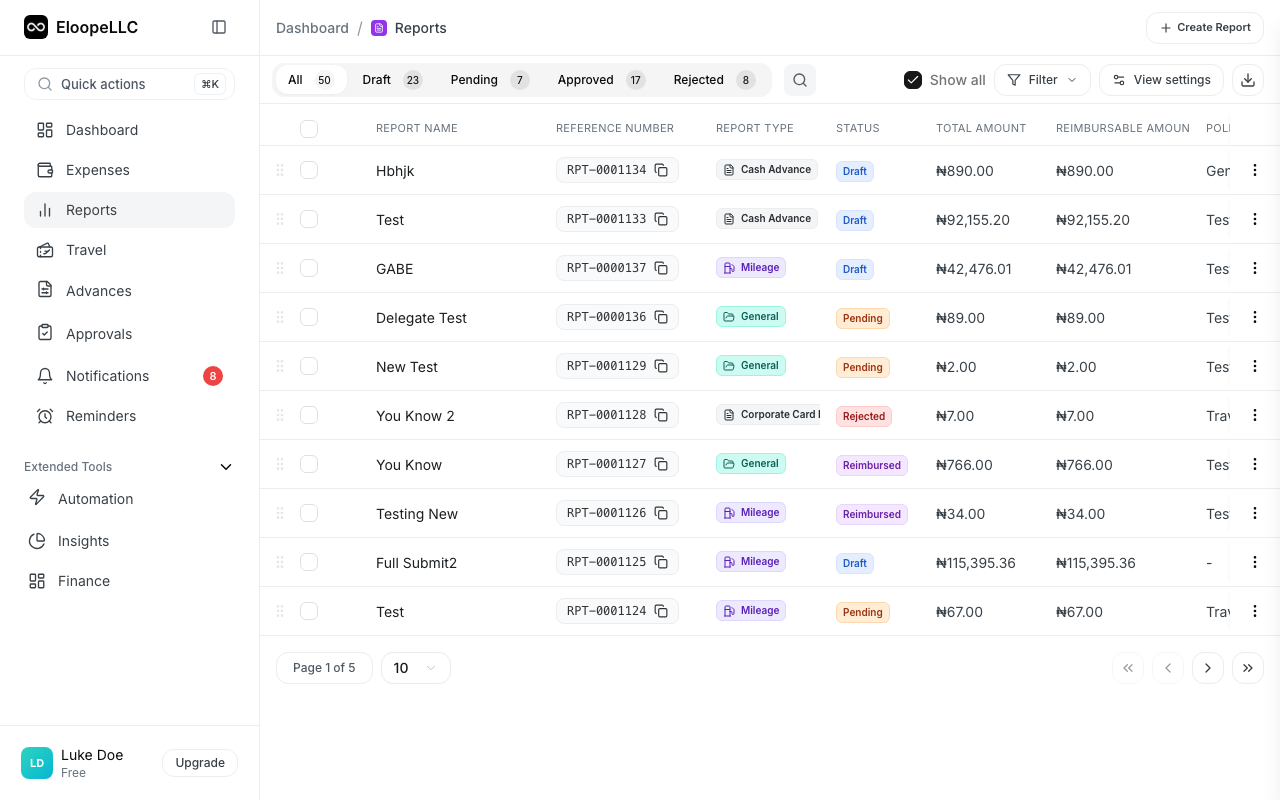
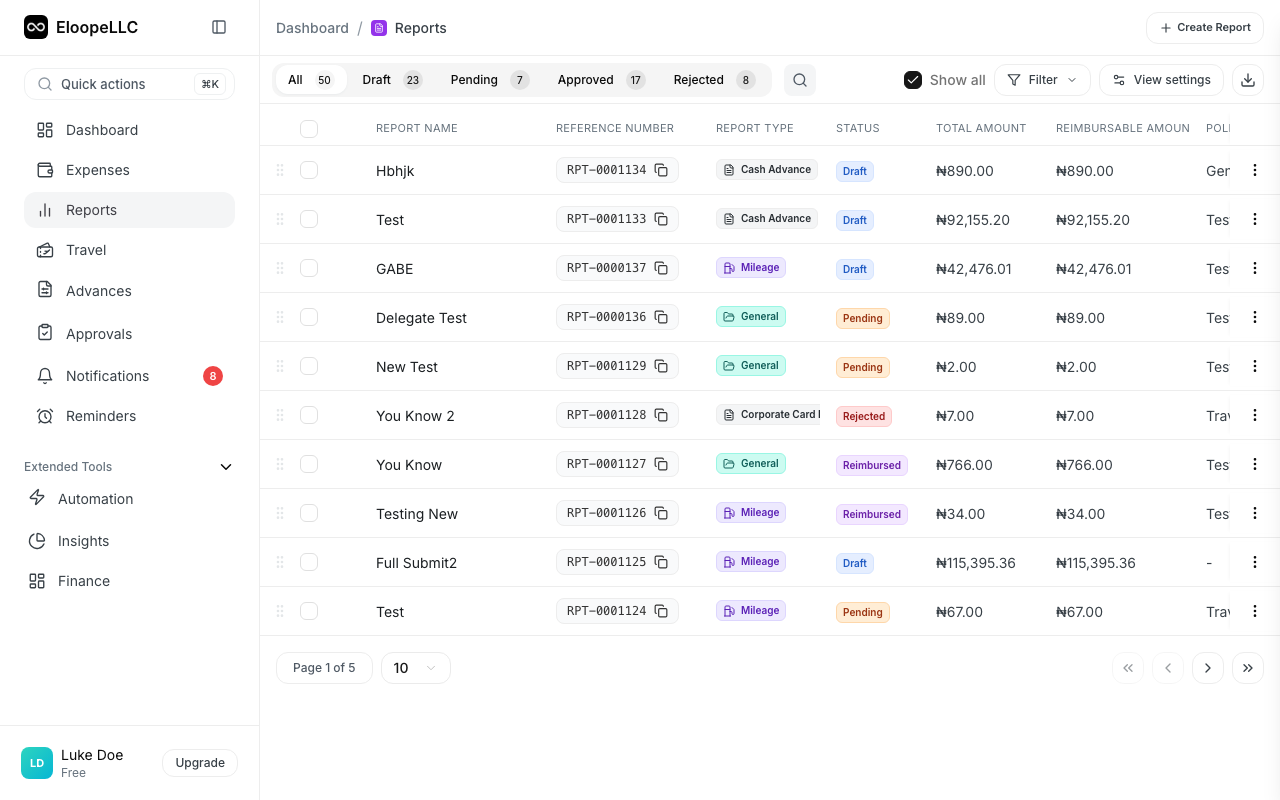
- Navigate to Reports and open the rejected report
- Read the approver's comments in the Activity section: they explain what needs to be fixed
- Check each expense for flagged issues
The approver may flag specific expenses or provide general feedback about the entire report.
Common rejection reasons
| Reason | What to do |
|---|---|
| Missing receipt | Upload the receipt to the flagged expense |
| Wrong category | Change the expense category to the correct one |
| Amount too high | Verify the amount matches your receipt. Add justification if correct. |
| Unclear description | Update the description with a clear business purpose |
| Duplicate expense | Remove the duplicate from the report |
| Policy violation without justification | Add a comment explaining why the expense was necessary |
Fix and resubmit
- Open the rejected report
- Address each issue the approver identified
- Edit the relevant expenses: update amounts, categories, descriptions, or upload receipts
- Add a response comment explaining what you changed (e.g., "Uploaded missing receipt for hotel. Corrected category on taxi expense.")
- Click Submit to send the report back for approval
Note: Adding a response comment when you resubmit helps your approver see exactly what changed. This speeds up the re-review process.
If you disagree with a rejection
Sometimes a rejection is based on a misunderstanding. If you believe your expenses are correct:
- Open the rejected report
- Add a comment explaining your reasoning (e.g., "This meal exceeded the daily limit because it was a pre-approved client dinner. See attached approval email.")
- Attach any supporting documents
- Resubmit the report
Your approver will see your explanation and can reconsider their decision.
Warning: Repeated rejections on the same report may be escalated to your department head. If you and your approver cannot reach agreement, involve your manager or HR for resolution.
Avoid future rejections
- Upload receipts immediately after every purchase
- Use accurate categories: check your organization's category list if unsure
- Write clear descriptions that state the business purpose
- Address policy violation flags before submitting
- Review the pre-submission checklist every time