

Monitor your expense reports from submission through reimbursement.
Report statuses
Every report has a status that tells you exactly where it is in the approval and payment process.
| Status | Meaning |
|---|---|
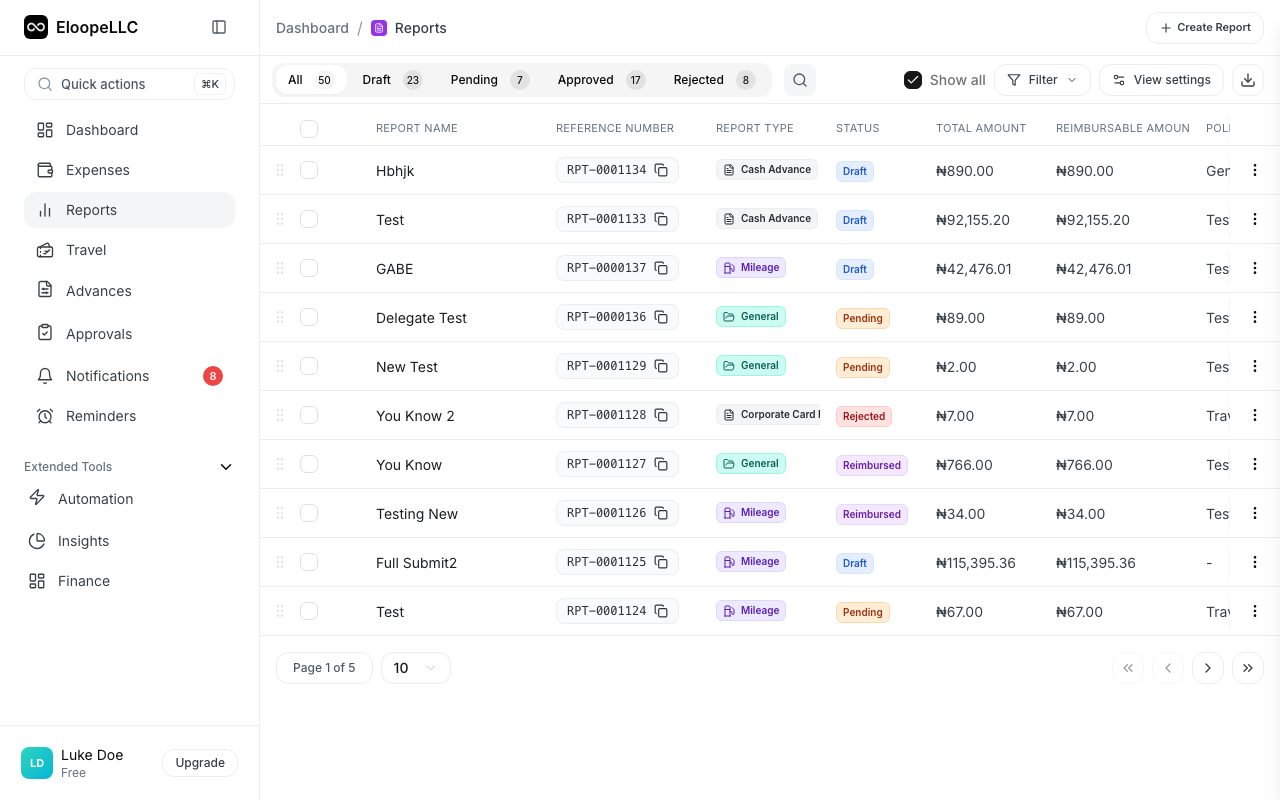
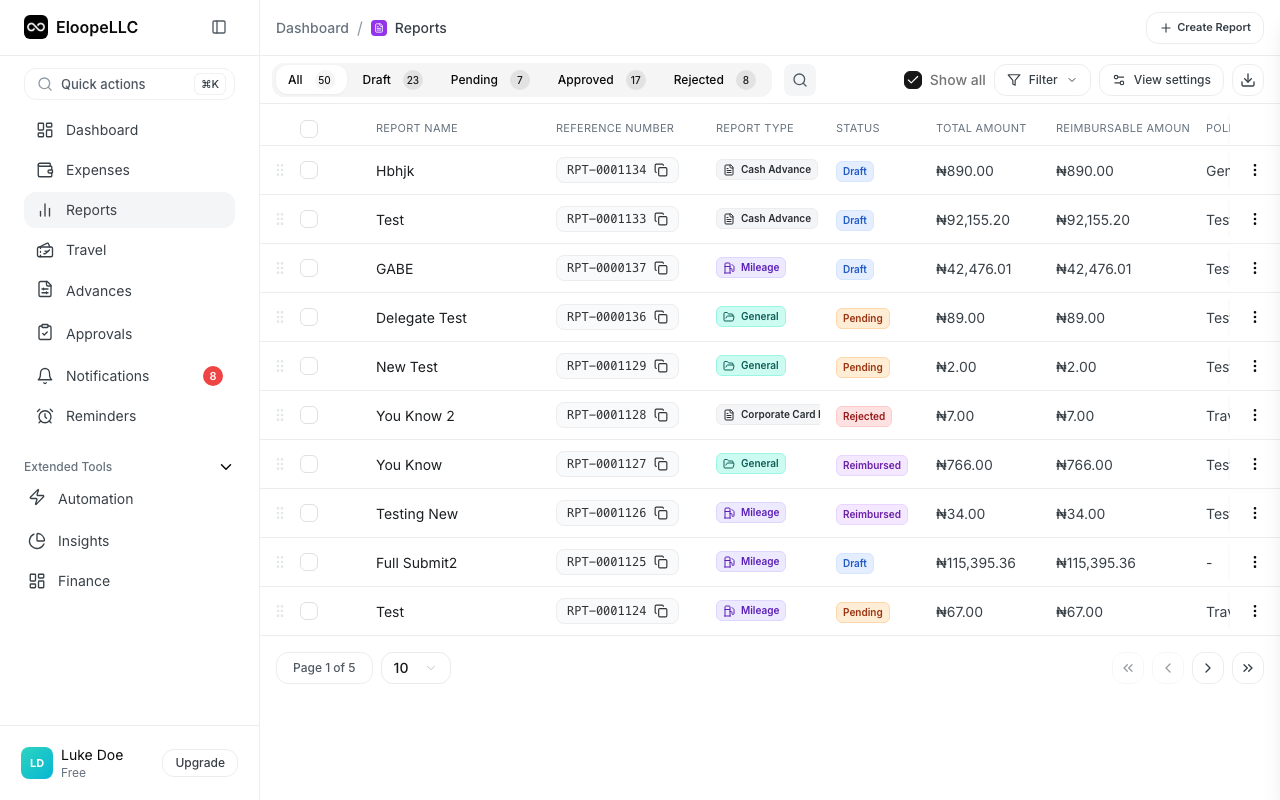
| Draft | Report created but not yet submitted. You can still add, remove, and edit expenses. |
| Pending | Report sent to your approver. Expenses are locked until recalled. |
| Approved | Your manager approved the report. It moves to finance for reimbursement processing. |
| Rejected | Your approver returned the report. Review comments, make corrections, and resubmit. |
| Reimbursed | Payment has been processed to your account. |
View your reports
- Navigate to Reports in the sidebar
- Browse your reports list: each report displays a color-coded status badge
- Use the status filter to show only reports in a specific state (e.g., show only Pending reports)
Activity timeline
Open any report to see its full activity history. The timeline shows every event in chronological order:
- When the report was created
- When expenses were added or removed
- When the report was submitted
- Approver comments and decisions
- Recall events
- Reimbursement processing updates
Each entry shows who performed the action and when. This gives you a complete audit trail for every report.
Notifications
You receive notifications at each stage of the report lifecycle:
- Pending: Confirmation that your report was received
- Approved: Your report passed review and is queued for reimbursement
- Rejected: Your report needs changes (includes the approver's reason)
- Reimbursed: Payment has been sent to your account
Notifications appear in the Notifications panel and are also sent by email (if enabled in your settings).
Note: You can configure which notifications you receive in Settings > Notifications. We recommend keeping approval and rejection notifications enabled.
Typical timelines
Processing times vary by organization, but here are common benchmarks:
- Approval: 1-3 business days after submission
- Reimbursement: 3-5 business days after approval
If your report has been in Pending status for more than 5 business days, consider sending your approver a message. Reports occasionally need a nudge if your manager has a large approval queue.
Quick status check
For a fast overview without opening individual reports:
- Go to Reports
- Sort by Status or Date Submitted
- Scan the status badges for any reports that need your attention: Rejected reports require action from you
Your Dashboard also shows a summary of report statuses in the key metrics cards.